Email Templates
Email Templates
In learningBOX, you can automatically send an email to the email address you set up when you register a member, when a report is submitted, when a report is graded, or when a study is completed.
You can set the content of the email that is sent, and you can also choose not to send the invitation email.
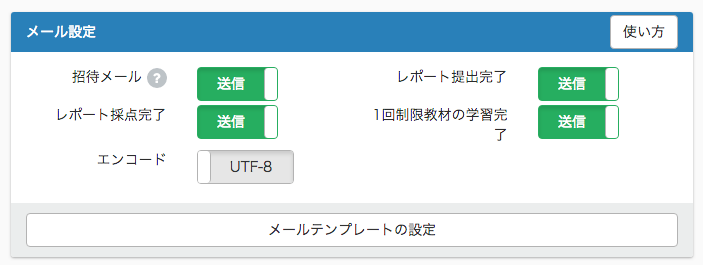
Email Settings
If you don't want to send a mail, please switch it off.
Editing the contents of an email
Click on "Email Template Settings."
A list of email templates will be displayed. Click the + button New on the right side of the email template you want to change the content of.
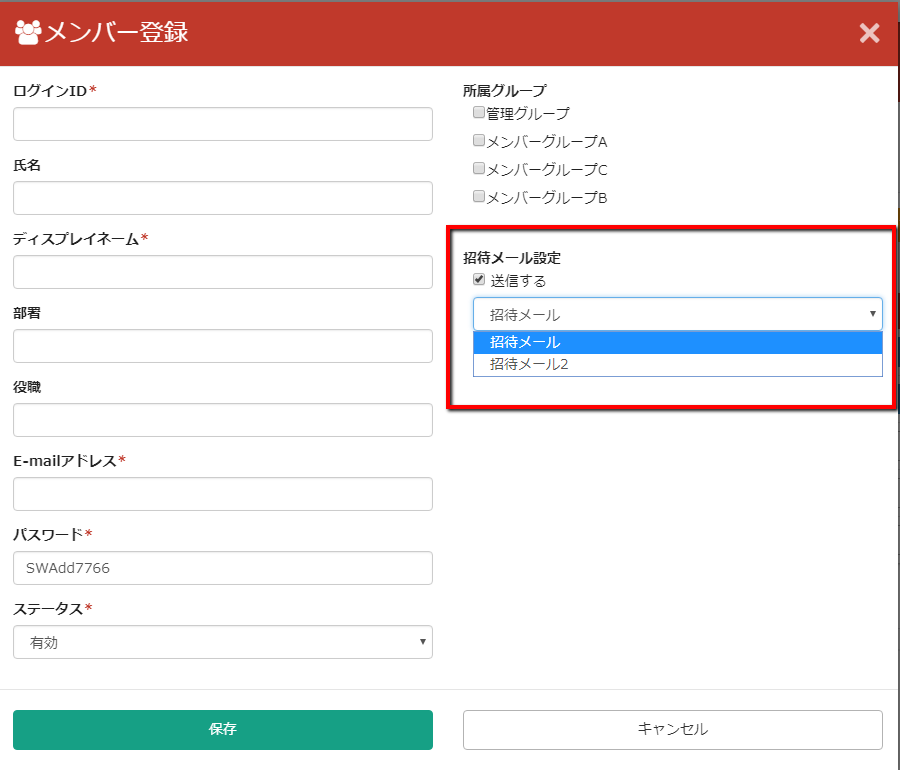
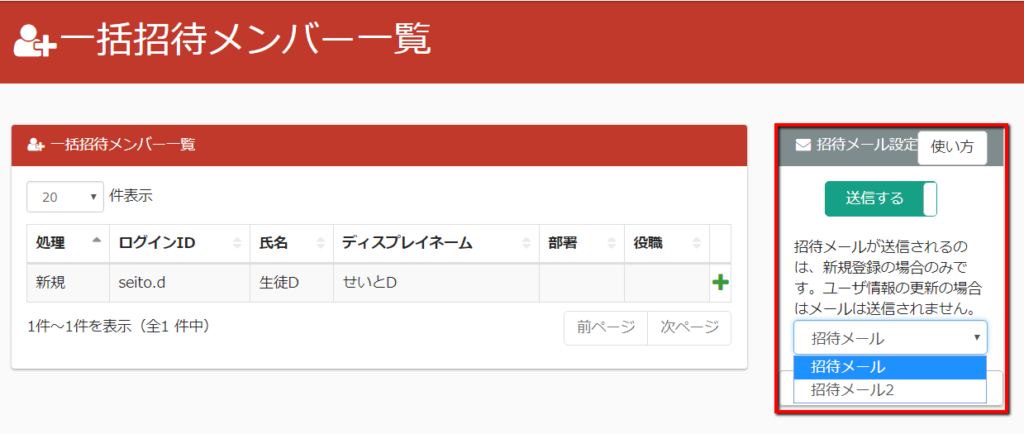
As for the invitation email, you can prepare multiple templates, and you can specify the invitation email template that you want to send when you send it.
Use the yellow gear button to edit the template, and the red button to restore the default.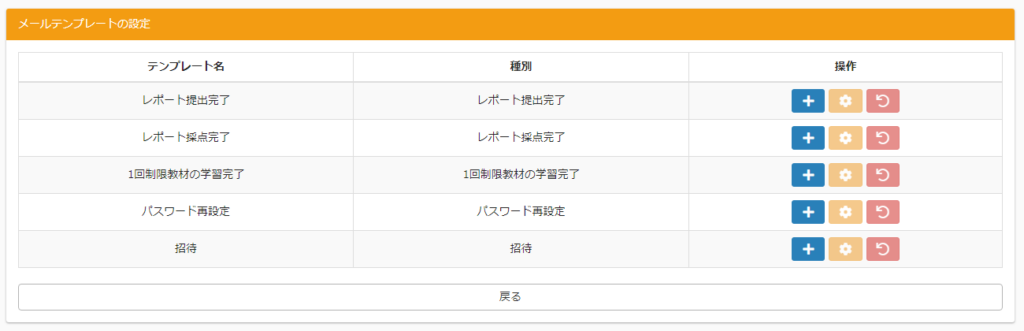
Enter the template name. Edit the invitation email in the red box. In the blue frame, you will see a preview of the actual email that will be sent. The user's name and other information displayed at this time is automatically displayed as "the information of the first user added" for testing. You can add the information you want to use in the invitation email by using the pull-down and add buttons in the green frame. In the yellow frame, you can set To, Cc, and Bcc in the invitation email additionally. You can set multiple email addresses by separating them with a comma.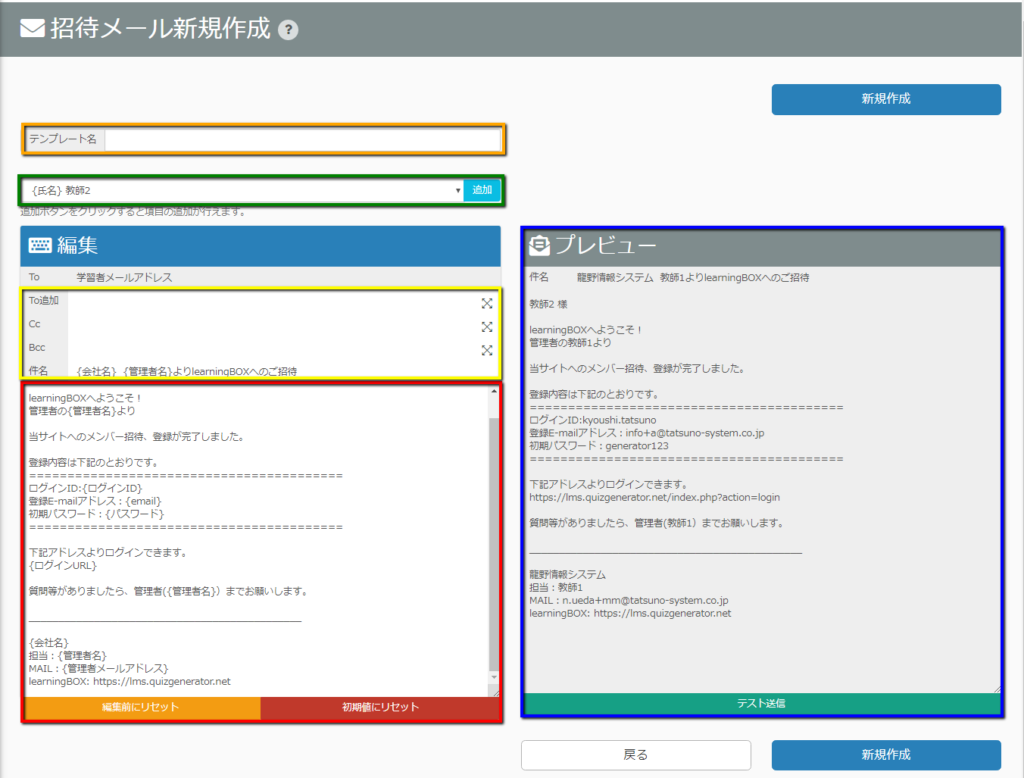
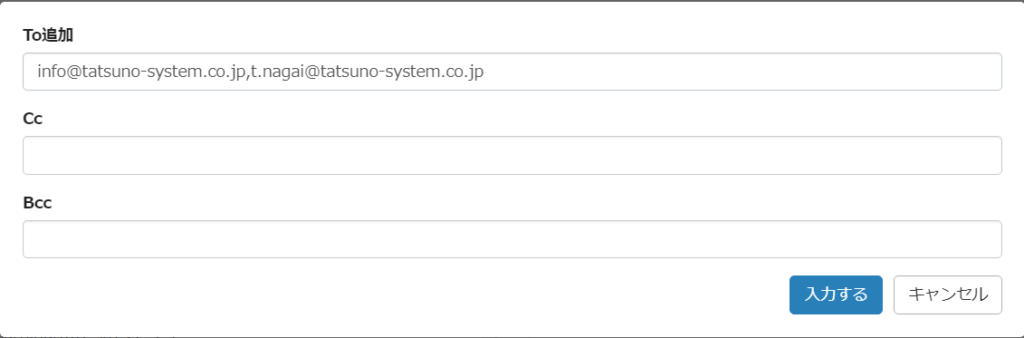
Click the icon on the right to open the input field modal.
When you click "Send Test", an email will be sent to the administrator. At this time, the user's name and other information is also automatically displayed as "the information of the first user added" for testing.
If you are satisfied, click "Create New".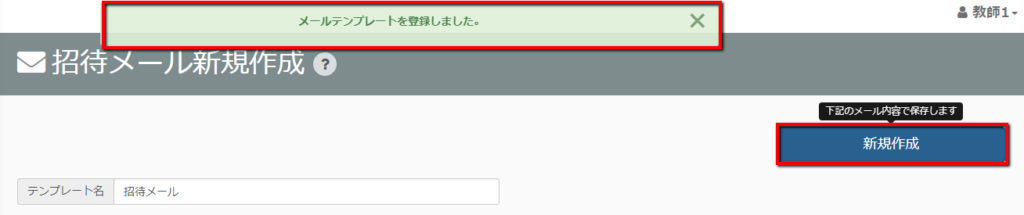
You can set the email template to send the newly created invitation email at the place shown in the image below.