Manage contents
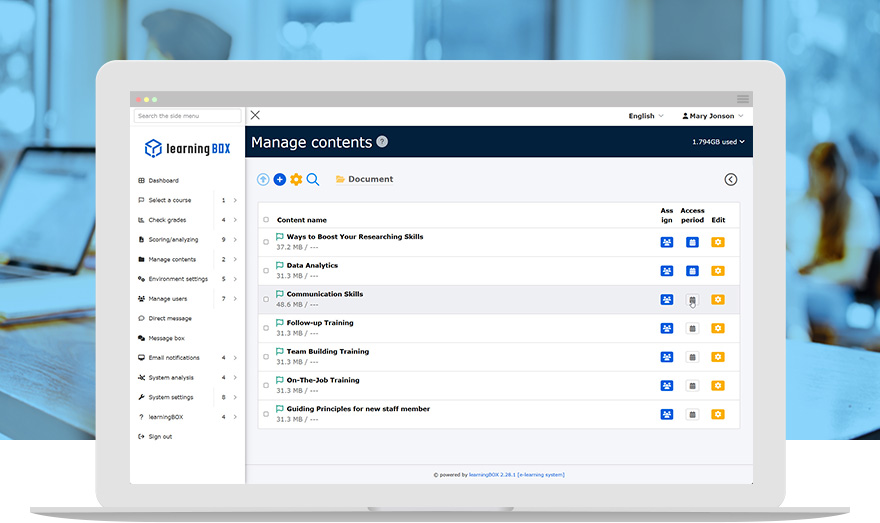
A wide variety of learning content,
Create content with just a few clicks.
Content Management allows you to create learning content and distribute it to learners, including web quizzes, web tests, PDF and video postings, surveys, and more.
Key Features
- Creation of learning content
- Creating a course folder
- Assignment of learning content
Features
Key 01
A wide variety of learning content can be created
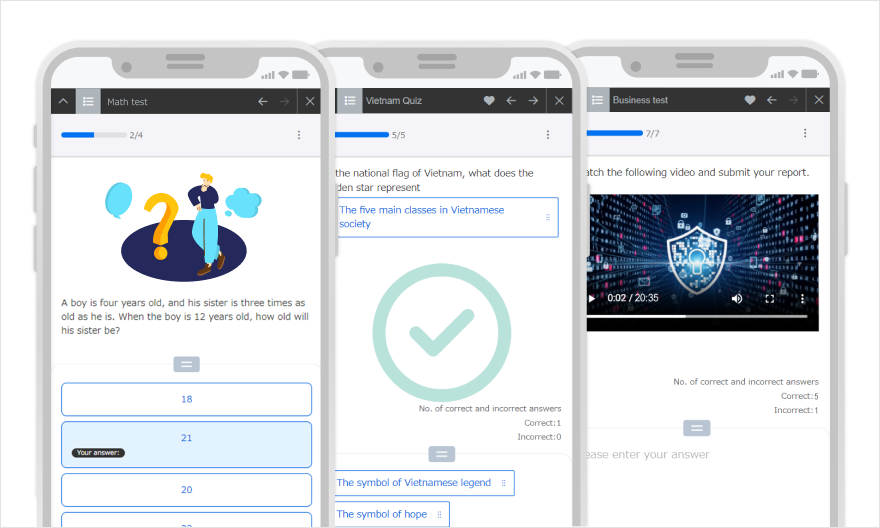
Online Quizzes and Exams
Enrich your content with 13 question types and a variety of options.
Question Types
- MCQ (radio buttons)
- Multi-choice (image)
- multiple-choice question quick
- Multi-MCQs
- Correct (0x) and incorrect (0x) questions
- combination
- Sort Badges
- making up for something (e.g. one's mistake)
- description
- Description +
- multiple entry
- pulldown
- Report and questionnaire description
Available Content
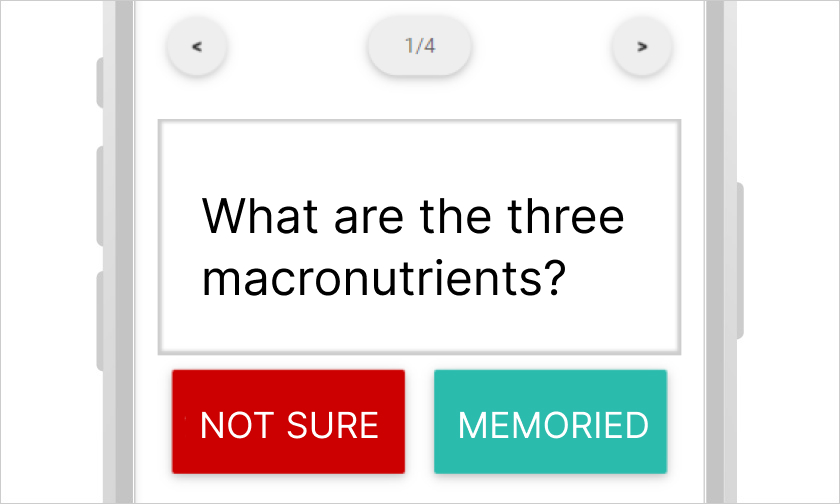
Memorization card
Be ready for an exam. Memorization card will show you ones you have not memorized.
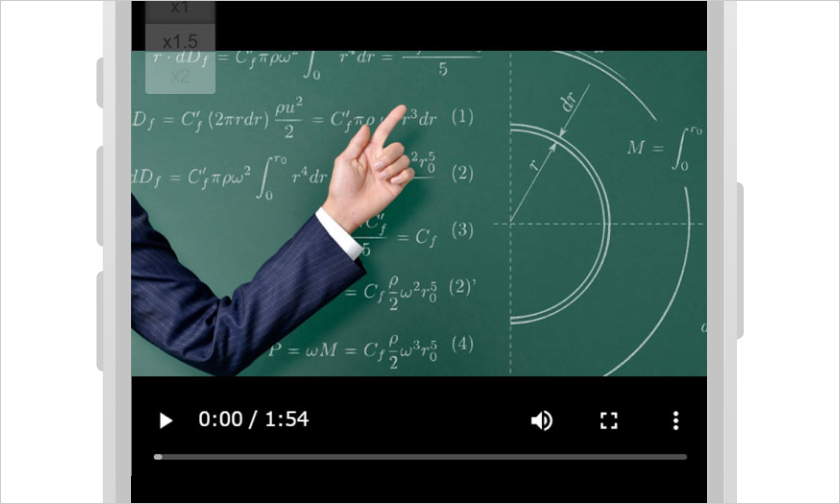
video
Videos can be uploaded and used as learning content. You can also set "No Double-Speed Playback" and "No Skip Playback".
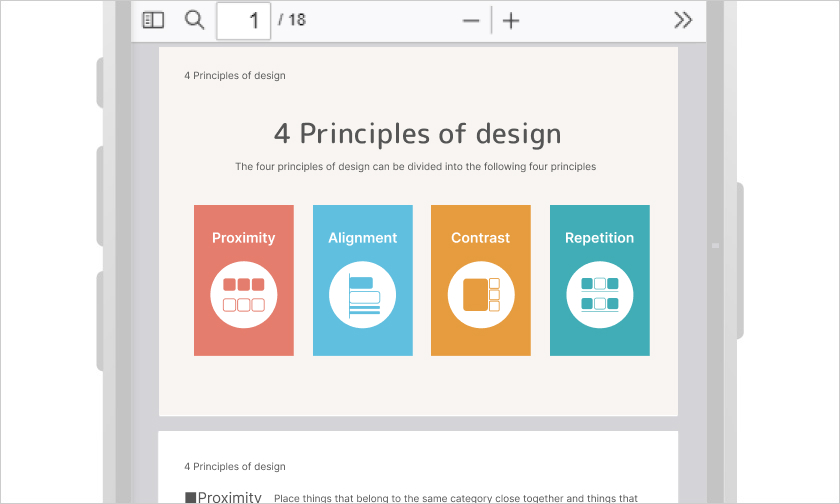
PDFs
PDF data created with Excel or PowerPoint can be distributed as learning content.
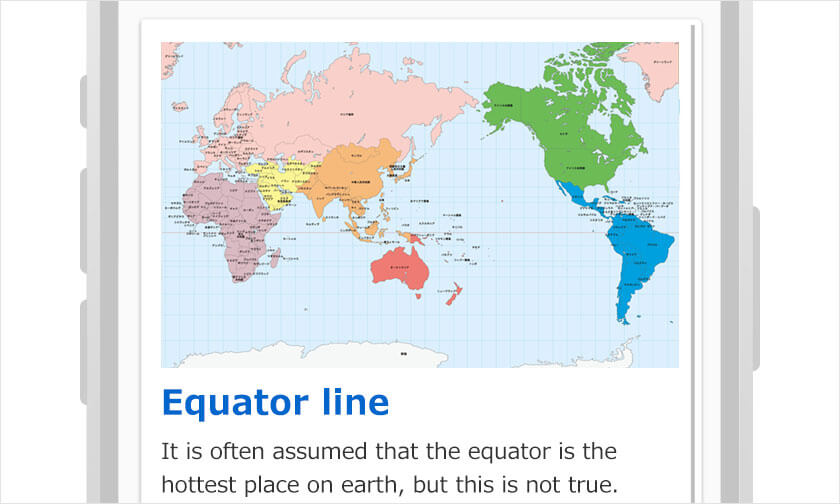
Web page
Creation form indicates easy steps to create a web page on learningBOX. Tailor your page with colors and images.
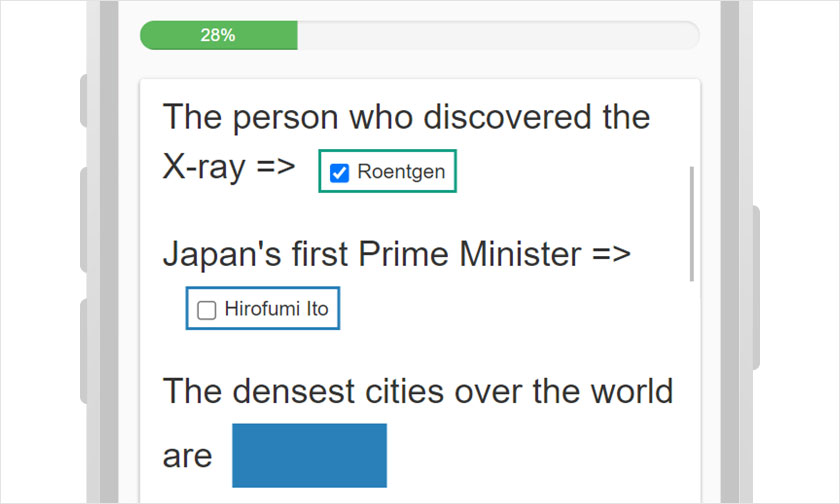
Show/Hide Workbook
Hide words you want to memorize. Progress rate shows you how much you have memorized.
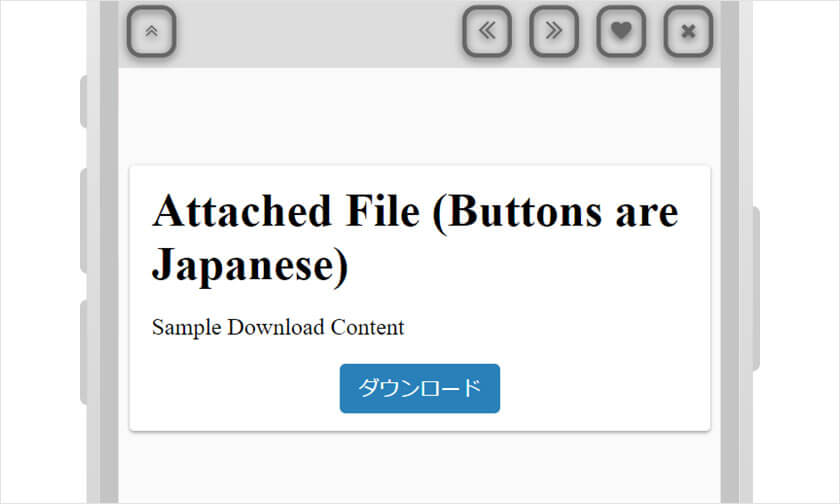
Attached File
Learners can download various types of files on learningBOX.
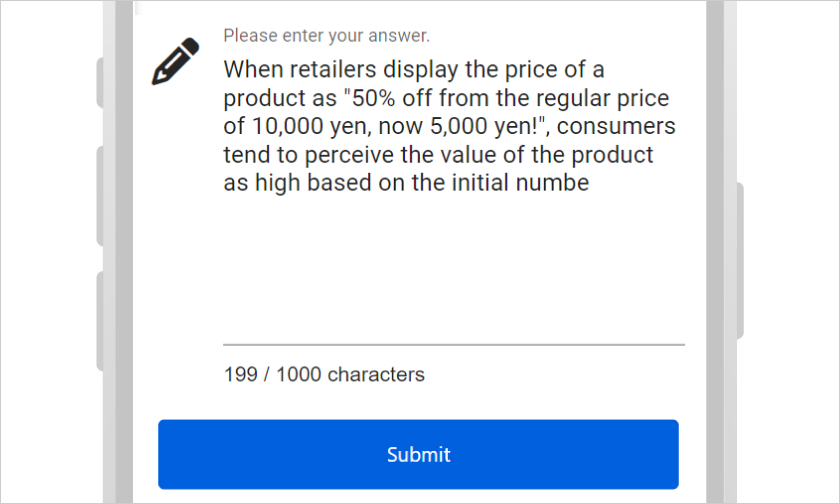
Report assignment
Learners can submit assignments by typing text or uploading files.
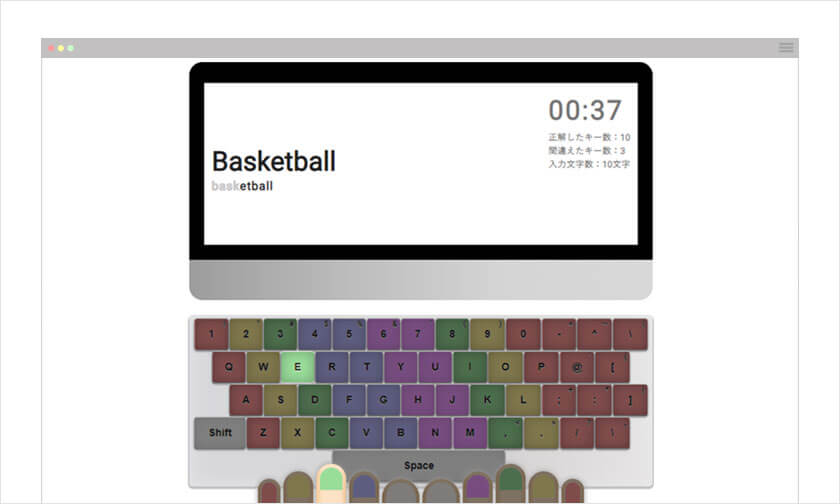
Typing
Typing practice is also easy to create. Improve typing speed in your learning course.
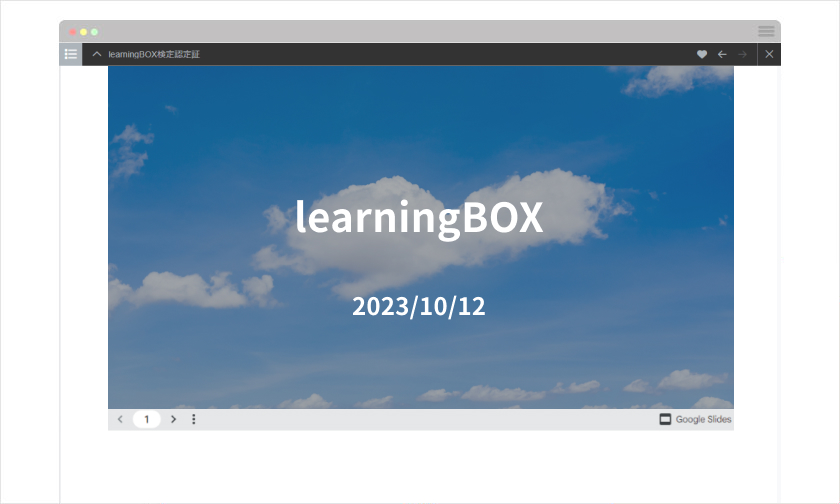
Embedded Content
Import and embed iframe content from YouTube, google slides, etc.
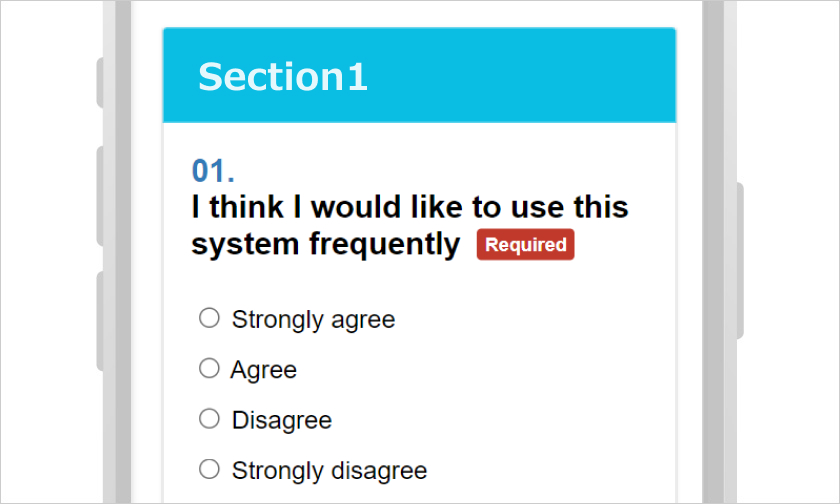
Questionnaire
Analyze data and improve your online course by collecting feedback from learners.
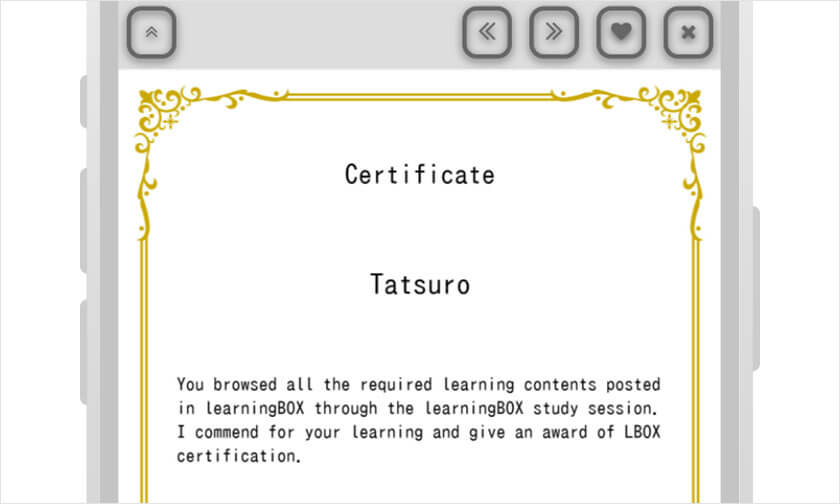
Certificates
Certificates can be issued. You can create as many certificates as you like for each content or unit.
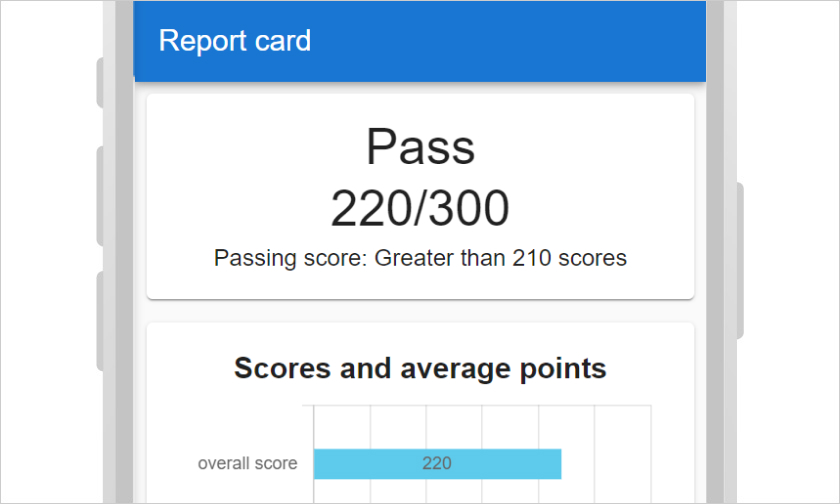
Score chart
You can specify learning contents and create your original gradebook.
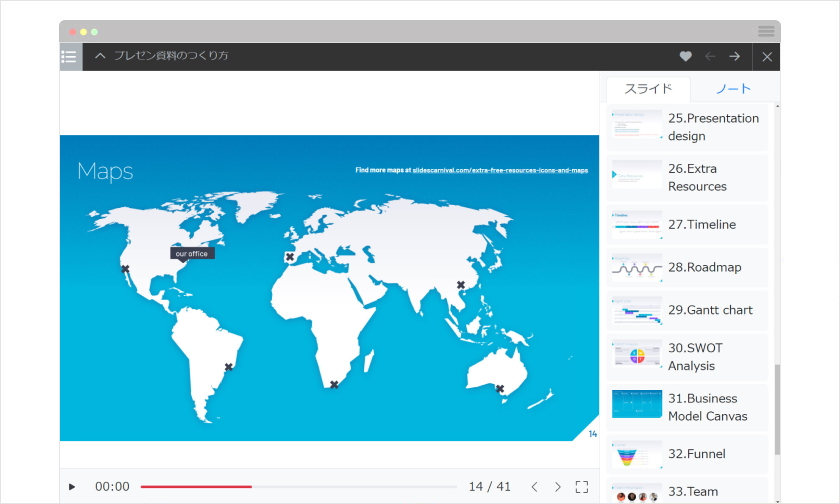
PowerPoint Material Import
Files created with PowerPoint can be imported directly and used as learning content.
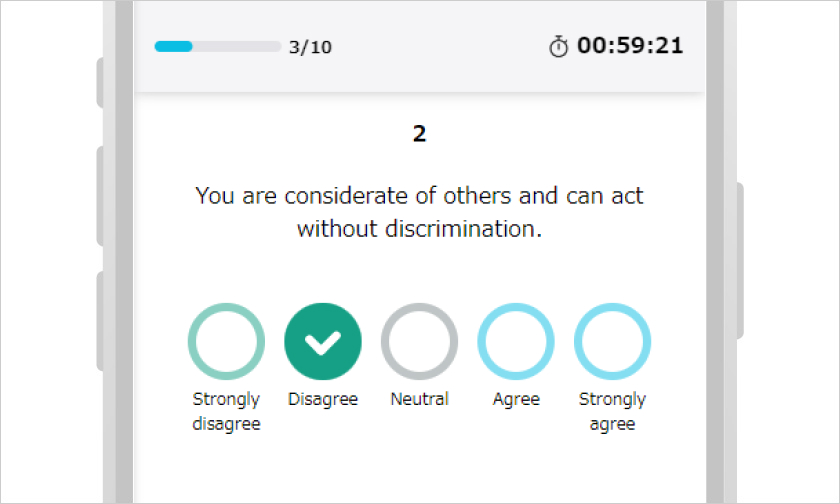
Personality test
Create your own personality tests, and share the results with candidates.
For SCORM
learningBOX is compliant with the SCORM standard.
iSpring and Adobe Captivate can be imported to learningBOX.
Key 02
Detailed settings can be attached to learning content.
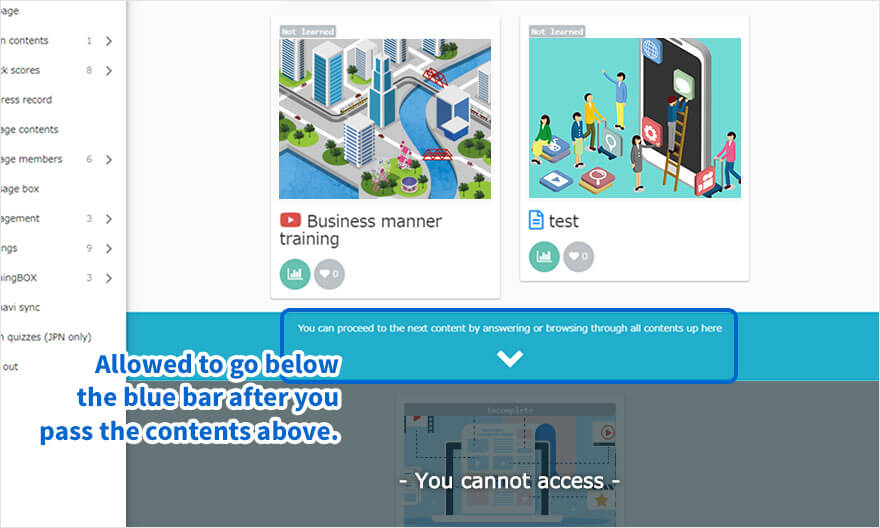
Set conditions for effective course building.
Using the "Clear Conditions" function, which allows control over the order of learning, you can create learning courses with restrictions such as "Only those who have viewed this content can proceed to the next question. For example, the order of learning can be "View Material," "Exercises," "Test," and "Certificate," which will help improve learning proficiency.
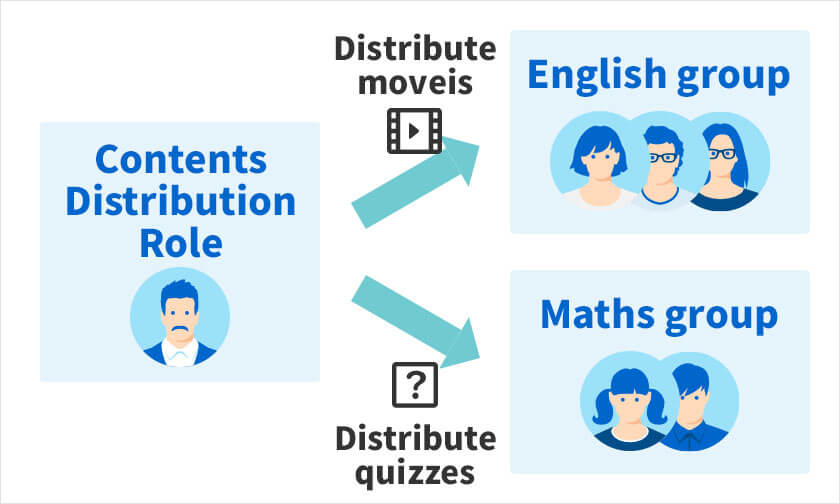
Assign content
Content can be assigned to groups or to individual learners. Learners will only see the content assigned to them.
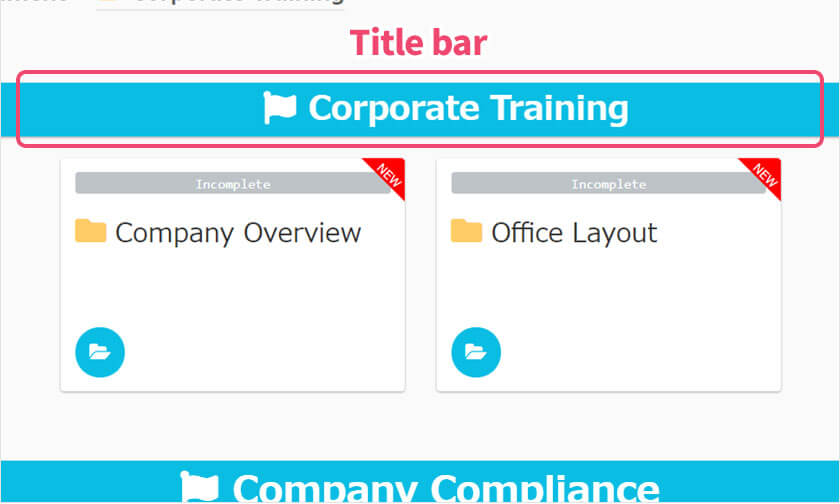
Headings
Headings can be inserted into the course, separate from the content title.
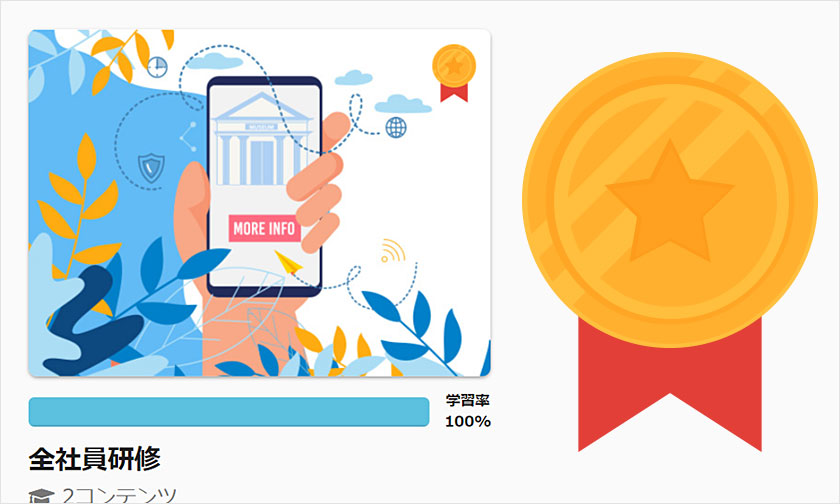
Badges
This function displays a badge according to the learning status, such as passing a quiz. The badge can be changed to any image you like.
Others
- Access period
- Limit attempt
- Time limit
- Pause/resume
- Point settings
- Questions by section
- Sound effects
- Specify the No. of questions
- Random questions and choices
Key 03
Easy to create learning content
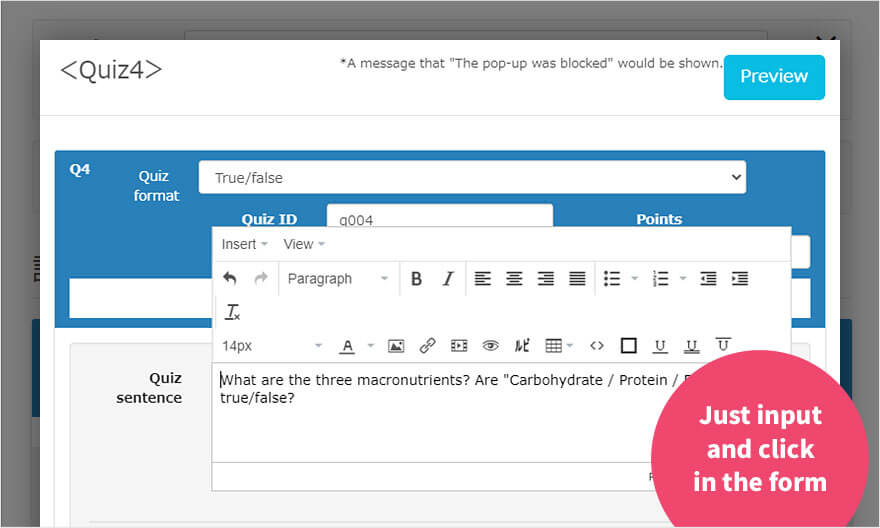
Intuitive creation form
No programming knowledge is required to create questions.
*Tens or hundreds of questions can be uploaded in batch using Excel and text.

-
Discover rich featuresService Guide

-
Feel free to contact usGet in Touch

-
Try our Free PlanTry Free Plan