Notice

123 Articles
learningbox-vu_216

About This Version Update Thank you very much for using the learningBOX e-learning authoring system. Today, learningBOX was updated from Version 2.15 to 2.16. In this article, we will provide a detailed overview of Version 2.16.7 (released November 17, 2021), which includes various new features.   Click here for a list of new features and improvements New Features Feature Improvements 1. Fanfare Feature 11. Group-Specific Email Template Feature 2. Linked Content Settings Feature 12. Section ID (Major Question Number) Feature 3. Pre-Exam Device Compatibility Check Feature 13. Assignment of Individual Learning Materials Feature 4. Customizable Notification Email Settings 14. Survey ID, Tag, and Answer Choice Number Settings 5. Content Code Configuration 15. Source IP Restriction 6. Breadcrumb Navigation 16. Media Data Preloading 7. Answer Choice Numbering 17. Course Basic Settings 8. Group Code Configuration Function 18. Expansion of the Badge Function 9. Essay Grading Function 19. Custom Dashboard Function 10. Publication Period Settings by Group In this version update, the “Fanfare Function”—which had been highly requested—has been newly developed. In addition, many other features have been added, including improvements to existing functions and API integration capabilities. Now, let us introduce the 2.16 series update in detail. Fanfare Feature A feature has been added to display a fanfare when a badge is earned. You can choose from three styles: “Rich,” “Simple,” or “No Animation.”   Conditional Content Settings You can configure the system so that hidden content is displayed only when a specific folder or learning material is marked as “Pass” or “Fail.” Device Compatibility Check Before administering a test, you can check download speeds, login devices, and audio playback. Please note that this feature is available in Quiz version 5.13.5 or later.   Custom Notification Email Settings: This feature allows you to configure whether notification emails are sent on a per-user basis. Users can choose not to receive non-important notification emails. Additionally, administrators can specify whether a notification is “important” or “non-important” when sending it.   Content Code Configuration Feature: You can now set a “content code” when creating or editing learning materials. By assigning a code to the content, you can link it during API integration. Breadcrumb Feature: This feature visually displays where the user is located on the web page. The breadcrumb trail includes links to the pages the user has navigated through.   Answer Selection Tracking: After learners complete a quiz, you can review which answer choices they selected. Group Code Configuration: You can now set “group codes” in member management. Essay Grading: You can send email notifications requesting grading of reports and import the grading results into Excel.   Publication Period Settings by Group: You can set the publication period for content on a per-group basis. Email Template Function by Group: You can set email template editing permissions on a per-group basis. *Note: You can specify target groups for email templates only for invitation notifications and grade management notifications.   Section ID (Major Question Number) Feature: When downloading grade data as a CSV, you can retrieve grade information for each major question. Assignment by Individual Learning Material: Learning materials can be distributed either by group or as individual materials. Survey ID, Tag, and Answer Choice Number Settings: You can view IDs, tags, and answer choice numbers in the survey details.   IP Address Restriction Feature: This feature allows you to restrict access to content from specific IP addresses. Media Data Preloading Feature: Even if the network connection is lost during an exam or study session, the [audio files], [video files], and [image files] for quizzes created in Content Management will play or display offline.   Basic Course Settings: You can configure settings for the entire course. You can also make course information visible to members before they log in. Enhanced Badge Functionality: You can change the default badge images, reorder the list of created badges, and manage badge categories.   Custom Dashboard Feature: This feature allows you to configure the panels displayed on the dashboard and the content of each panel. *Note: Only administrators and members with access permissions to the settings page can configure this feature. Other: For detailed instructions or if you have any questions, please contact our CS Sales Team. ●Contact Form We will continue to listen to our customers’ feedback and work to improve our features to make your experience even more enjoyable. Details regarding the new features and improvements added in learningBOX Ver. 2.16 are also described in detail in these release notes. We appreciate your continued support of learningBOX and QuizGenerator.
learningBOX Ver2.15

LearningBOX is upgraded to Ver2.15.

About This Version Update Thank you very much for using the learningBOX e-learning authoring system. Today, learningBOX was updated from Version 2.14 to 2.15. In this article, we will provide a detailed overview of Version 2.15.10 (released on August 25, 2021), which includes various new features.   Click here for a list of new features and improvements New Features Feature Improvements 1. Site Customizer 5. Display alerts on devices logging in from environments other than the recommended ones 2. Handwritten image creation and submission feature (Quizzes/Reports) 6. Set a limit on the number of accounts registered per group 3. Badge list display feature 7. Bulk CSV registration [Permission Granting Feature] 4. Spot Contracts In this version update, the “Site Customizer”—which had been highly requested—has been newly developed. In addition, many features have been added, including improvements to existing functions. Now, let us provide a detailed introduction to the 2.15 series version update.   Site Customizer: This feature allows you to customize your site’s basic information, design, and side menu on your own. *Available only to customers with a shared server plan (with design customization) or a dedicated server plan.   Handwritten Image Creation and Submission Feature (Quizzes/Reports) New features have been added to the [Quizzes & Tests] and [Report Assignments] sections of Content Management. This feature allows learners to submit handwritten text or illustrations as answers. Badge List View Feature This feature allows learners to view a list of the badges they have earned.   Spot Order: A “Spot Add-On Order” feature has been added, allowing you to temporarily increase the number of registered accounts (users) during the term of your current plan. This enables administrators to add registered accounts directly within learningBOX without having to wait for the paid plan to expire.   Alert Display for Devices Logging In Outside Recommended Environments: This feature displays an alert—only on the first attempt—when accessing the system from an OS or browser other than those recommended by our company. Setting Limits on Group Account Numbers: You can set limits on the number of accounts in a group. This setting can be configured by users with group management permissions.   Bulk Registration via CSV [Administrator Permissions] You can now grant administrator permissions to users via bulk registration using a CSV file.   Other For detailed instructions or if you have any questions, please contact our CS Sales Team. ● Contact Form We will continue to listen to our customers’ feedback and work to improve our features to make your experience even more enjoyable. We appreciate your continued support of learningBOX and QuizGenerator.
E-learning - free

Important】Information about the change of CSV format

On May 12, 2021, learningBOX was updated from version 2.13 to 2.14. Due to this major update, the CSV format for member management has been partially revised. Because of these changes, attempting to upload a file using the format from version 2.13 will result in an error and the data will not be registered. In this article, we will explain the changes to the CSV format from version 2.13 to 2.14 and provide solutions. Table of Contents: 1. CSV Format (Version 2.13) 2. CSV Format (Version 2.14) 3. Precautions When Uploading Members in Bulk 4. Apology Regarding the Format Change CSV Format for Version 2.13 The format for Version 2.13 and earlier consisted of a total of 10 fields, listed from left to right as follows: “Login ID, Full Name, Display Name, Department, Job Title, Email Address, Password, Status, Validity Period, and Group Membership.”   CSV Format for Version 2.14 and Later: Starting with Version 2.14, the format fields—listed from left to right—are “Login ID, Full Name, Email Address, Password, Country of Residence, Language, Time Zone, Status, Expiration Type, Validity Period/ Expiration Date, and Group Membership," for a total of 11 fields; the order and field names have been changed. Important Notes When Uploading Members in Bulk If you attempt to register members using the format from version 2.13 or earlier, an error will be displayed as shown below, and registration will fail. When you execute the upload and click "Proceed to Confirmation Screen," an error will be displayed.   We apologize for the inconvenience. Please click the “+” button on the Member Management screen, navigate to [Bulk Operations (CSV)] > [Member Registration/Update], download the [CSV Format Sample], re-enter the member information, and then upload the file.   Open the downloaded file and enter the member information. Finally, upload the file to complete the process. How to upload using an existing CSV file: Open the CSV file you are using. Edit the CSV file to arrange the data in the order specified by the 2.14 series format and add the required fields.   Enter the member information from your existing CSV file. Save the edited CSV file as a replacement, then upload the file. Apology Regarding Format Changes On May 12, 2021, learningBOX was updated from Version 2.13 to 2.14. Due to this major update, the CSV format for member management has been partially revised. We sincerely apologize for the inadequate internal communication regarding these functional changes and for releasing the update without notifying our customers. Going forward, we will maintain close communication and coordination within our team to ensure that such mistakes are not repeated. We sincerely and deeply apologize to our customers, business partners, and all stakeholders for the significant inconvenience and disruption this has caused. We look forward to your continued support.
learningBOX-2.14-version up

LearningBOX is upgraded to Ver2.14.

About This Version Update Thank you very much for your continued use of the learningBOX e-learning authoring system. Today, learningBOX was updated from Version 2.13 to 2.14. In this article, we will provide a detailed overview of Version 2.14.22 (released on May 12, 2021), which includes various new features. Click here for a list of new features and improvements New Features / Improvements 1. New Pricing Plan (Premium Plan) 5. Folder Shortcut Feature 2. Security-Related Features 6. Page Redirection After Login 3. Curriculum Feature 7. Dashboard Feature 4. Course Feature In this update, we’ve developed new “security-related features” in response to frequent user requests. We’re also launching a new pricing plan: the “Premium Plan.” In addition, many other features have been added, including improvements to existing functions. Now, let us introduce the version 2.14 update in detail. New Pricing Plan (Premium Plan) The new “Premium Plan” has been added. With the Premium Plan, you can upload high-capacity videos—even more than with the Starter Plan or Standard Plan. You can stream “high-quality videos” tailored to network conditions and device performance. Security-Related Features learningBOX’s security features have been significantly enhanced, including account expiration settings, strengthened password functionality, and password re-entry for critical operations. Curriculum Feature A curriculum feature has been added. This feature allows learners to study efficiently and systematically. *The Curriculum feature is available only to customers with a Shared Server/Design Customization or Dedicated Server plan. Course Feature A new Course feature has been added. This allows administrators to configure learners’ favorite courses or the desired order of study through settings. Folder Shortcut Feature A folder shortcut feature has been added. Folders added via the "Link Folders" feature will be displayed in a slightly darker shade. Post-Login Page Redirection Feature: You can freely configure the page learners access immediately after logging in. Dashboard Feature: The Dashboard feature has been added. This feature allows you to display learning materials created using the Curriculum and Course features according to rules set by the administrator. Other For detailed instructions or if you have any questions, please contact our CS Sales Team. ● Contact Form We will continue to listen to our customers’ feedback and work on improving features to make your experience even more enjoyable. We appreciate your continued support of learningBOX and QuizGenerator.
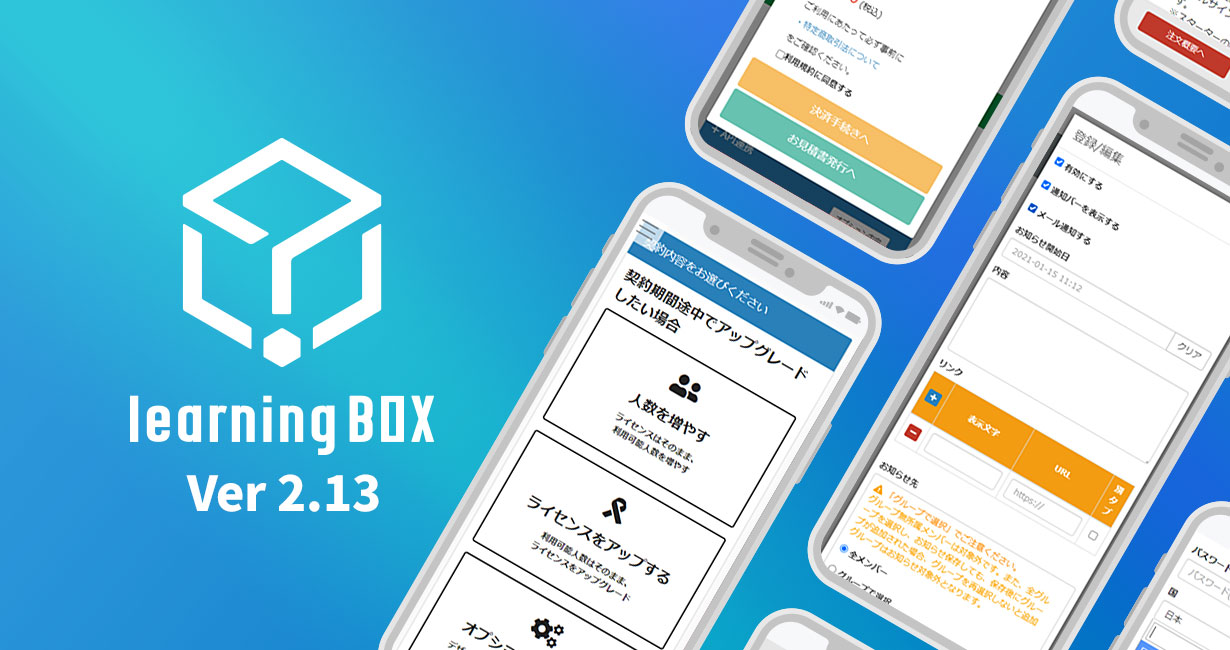
LearningBOX is upgraded to Ver2.13.

LearningBOX is upgraded to Ver2.13.

About This Version Update Thank you very much for your continued use of the learningBOX e-learning creation system. Today, learningBOX has been updated from Version 2.12 to 2.13. In this article, we will provide a detailed overview of Version 2.13 (released January 19, 2021), which includes various new features.   Click here for a list of new features and improvements New Features Feature Improvements 1. Redesigned Order Screen 8. English Input for Typing Lessons 2. Expanded Grade Management Notifications 9. Adding Related Content to Quizzes and Tests 3. Notification Features for Announcement Management 10. Character Limit Feature 4. International Support 11. Feature to Specify the Number of Playbacks for Audio Files 5. GDPR-Compliant Login Form 12. Addition of Question IDs 6. Optimized Title Tag Display 13. Introduction of HLS Videos 7. learningBOX Version Display Feature In this update, the “Grade Management” and “Announcement Management Notification” features—which have been highly requested—have become even easier to use and more convenient. Additionally, the order screen now allows you to change plan details and perform various upgrades via the web, even during the middle of your contract period. In addition, many new features have been added, including improvements to existing functions. Now, let us introduce the details of the 2.13 series update.   Redesigned Order Screen The order screen has been redesigned, allowing you to perform various upgrades even during the middle of your contract period. The order screen is now organized by contract type, making it easier to navigate and make selections than before. Furthermore, on the payment processing screen, you can now review the details of your updated contract.   Expanded Performance Management Notifications The system now displays the start date and time of study sessions, study progress status (performance), and test results (pass/fail). Using the email template feature, you can automatically send emails to specified addresses upon “member registration,” “report grading completion,” or “study completion.” You can freely edit and configure the content of the emails sent, and you can also choose not to send invitation emails. Notification Features for Announcement Management: You can now register multiple links in announcement notifications and pin announcements from administrators to the top of the page.   International Support: Customers whose residence is set to a location outside Japan can now process payments in U.S. dollars in addition to Japanese yen. When a new owner registers, a “Region and Language” field is added, and the date format changes based on the residence selected during account registration. GDPR-Compliant Login Form: You can now set up a new GDPR-compliant login form. GDPR stands for “General Data Protection Regulation,” which refers to the regulation enacted by the European Union (EU) on May 25, 2018. By configuring a GDPR-compliant login form, you can provide customers with a safer and more secure e-learning experience.   Title Tag Display Optimization Previously, page titles were uniformly set to the site title of the subdomain. However, with the development of this new feature, administrators can now track users’ page navigation using Google Analytics. learningBOX Version Display Feature A new version display feature has been added. This feature allows you to see at a glance which version of learningBOX was used to create the course material. English Input for Typing Exercises English input has been added to the form for creating typing exercises. Questions that can be set up using English input—such as sentences containing half-width spaces or those that distinguish between uppercase and lowercase letters—can be configured to suit your specific use cases.   Related Content Feature A new feature has been added to quizzes and tests. By using the Related Content feature, you can set content related to the quiz’s subject matter in the explanation section. Character Limit Feature You can set a character limit for essay questions in quizzes and tests. This feature supports three question formats: “Essay Question,” "Essay Question+," and "Multiple Essay Questions." Audio File Playback Limit Feature: You can set a limit on the number of times audio questions created in quizzes and tests can be played. Question ID Feature: You can optionally assign an ID to each question in quizzes and tests.   HLS Video Support: You can set videos to use the HLS format. HLS videos play seamlessly not only on Apple products such as Mac, iPhone, and Safari, but also on Windows and Android devices. By using HLS videos, you can upload videos at the appropriate quality level based on network conditions and device performance.   Other Information For detailed instructions or if you have any questions, please contact our CS Sales Team. ● Contact Form We will continue to listen to our customers’ feedback and work on improving our features to make your experience even more enjoyable. We appreciate your continued support of learningBOX and QuizGenerator.
E-learning - free

Advance notice for the functional modification of "Mail Template" from Ver2.13.

Important Notice: As part of the 2.13 series update scheduled for around January 2021, the email template feature will be revised to make it easier to use. This notice serves as advance notice to all current learningBOX users regarding these upcoming changes. Since email templates are an important feature for members (learners), owners, and grade administrators, we are providing this advance notice. Please take a moment to review this information, regardless of whether you currently use this feature.   Table of Contents 1. About Email Templates 2. Types of Email Templates 3. For Customers Who Have Already Modified the Default Templates 4. Detailed Specifications About Email Templates learningBOX features an “Email Settings” function that allows you to send emails when inviting or registering members, upon completion of report grading, or upon completion of learning materials. You can access the “Email Settings” screen via “Administration” → “Email Settings.”   Please note: Whether this update applies to you depends on whether you have previously edited email templates. In version 2.13, changes will be made to the default email templates; the details of these changes and the scope of their application are as follows. Changes: The default email template will be updated, and the default footer template will be automatically added. Scope: Emails for which the default template has not been modified. *If you have modified the template, the changes will not apply unless you revert to the default settings. If you have previously modified the default email template, these changes will not apply. If you have previously changed the default email template, these changes will not apply. (Since the new email templates we have introduced in Ver. 2.13 may not be optimal for customers already using the system, there will be no changes to emails from customers who have modified their default email templates.)   If you have never changed the default email template, please review and adjust the new email templates as needed. Please note that this applies specifically to customers who have never changed the default email template. For example, in grade management notification emails, the previous email template did not display grades or scores to learners; however, with this update, grades and scores will now be displayed in the new default email template. (Details are provided below.) If you do not wish to display grades or scores in these emails, please adjust the text of the new default email template.   About Email Template Types: These are new email templates we have introduced in Ver. 2.13. As shown below, we have prepared new email templates for various purposes. (Multiple templates are available for some email types.) In grade management notification emails, the start date and time of the course and the learning status (grade) will be displayed. Previously, performance management notification emails sent to learners only included information such as the course title; however, starting with Ver. 2.13, they will also display the start date and time of study, the status of learning progress (performance), and test results (pass/fail). (The information displayed varies depending on the email template.) *As mentioned earlier, this update applies to the environments listed above. ▼Below is an example of an email sent using the new email template “Notification of Test Results” introduced in Version 2.13. The actual pass/fail status is displayed.   Default values will now be set for footer templates. The default footer template, named `default_footer`, is set in the common item templates and is ready to use immediately without any additional configuration. The `default_footer` footer template can be edited, but you cannot rename it or delete it. Changes made to this footer template will be reflected as the footer in all default email templates. You can also insert it into customized email templates using the `{default_footer}` tag.   Note for customers who have already modified the default email templates: *Multiple custom email templates for invitations and grade management notifications are automatically registered only when new owners register and begin using learningBOX for the first time in Version 2.13 or later. Since this automatic registration may be inconvenient for some existing administrators, it will not be applied to them. Therefore, if you wish to add new types of email templates, you will need to add them yourself within the system. For detailed specifications, we plan to publish a guide on how to use this feature upon the release of Version 2.13. We will announce the scheduled release date for Version 2.13 as soon as it is determined.
E-learning - free

Advance notice of the fee structure with the addition of the new feature "Upgrade in the middle of the contract period" from Ver2.13.

Important Notice: Starting with the update to the Ver. 2.13 series scheduled for around January 2021, you will be able to perform various upgrades even during your current contract period. In light of this new feature, we are providing advance notice of the pricing structure for upgrades made during the contract period. As this information pertains to pricing and is important, we are providing this advance notice. We kindly ask that you review this information. Please be assured that there will be no changes to the pricing structure for existing contracts—such as switching from a free to a paid plan or renewing a paid plan—so there is no need for concern. (This explanation applies strictly to upgrades made during the contract period.) *Please note that starting with Ver. 2.12, the feature to add users via the web during the contract period is already available. Depending on the period during which you apply the change to add users, the pricing structure in the Ver. 2.12 series may be more cost-effective than that in the Ver. 2.13 series. Therefore, if you are thinking, “I just want to increase the number of users,” we strongly encourage you to consider placing an order to add users now. (Depending on your contract details, this may not be possible via the web.)   Table of Contents 1. What Does “Upgrading Mid-Contract” Mean? 2. Four Types of Mid-Contract Upgrades 3. Important Notes on the Pricing Structure 4. Other Remarks What Does “Upgrading Mid-Contract” Mean? Have you ever encountered a situation like this? “Another department suddenly needs to use learningBOX, and the number of accounts in our current contract isn’t enough.” “We’re using more videos in our course materials, and the storage capacity of the Starter Plan isn’t sufficient.” “There’s been a sudden request from within the company to switch to a custom-designed LMS.” To address these concerns, we have added a new feature that allows you to add users or upgrade your license via our website—even during your contract period—without having to call us. If you’re facing any of the issues listed above, we encourage you to consider this option. Please note that we also accept upgrade requests via phone or email. Feel free to contact us. (Please be aware that depending on your contract details and package combination, we may not be able to accommodate your request.) There are four types of upgrades available mid-contract period. The “Mid-Contract Upgrade” feature introduced with this new update supports the following four options: ・Increasing the number of users ・Upgrading the license (from Starter to Standard) ・Upgrading both the number of users and the license ・Adding various options *This feature is available only to customers already using a paid plan. (The term “paid plan” here refers to customers currently using a paid learningBOX license plan. A contract for a QuizGenerator license alone does not constitute a “paid plan.”) *Please note that depending on the combination of license types and optional features, we may not be able to accommodate your request. We appreciate your understanding in advance. Important Notes Regarding the Pricing Structure: Please be aware of the following points regarding the feature updates introduced in Version 2.13. If you have an annual contract and wish to add features or upgrade during the contract period, the monthly subscription rate may apply (depending on the effective date of the change). Please refer to the table below first. It summarizes the pricing for annual and monthly contracts. The figures in red represent the annual cost used as the basis for calculation (excluding tax). ▼ License Only Currently on an annual plan, but the monthly rate applies when upgrading If your current plan is an annual plan (e.g., Starter or Standard), depending on the details and conditions of the addition (e.g., you want to add users for only the three months remaining until your contract renewal), the monthly rate—rather than the annual rate—will apply to the additional portion. Calculation Example 1) Upgrading from an Annual Starter 100 plan to a Starter 200 plan mid-contract (contract period remains unchanged) The payment amount in Calculation Example 1 is calculated as follows: Monthly rate per year ÷ 365 (pro-rated) × Remaining days 60,000 ÷ 365 × 171 days = 28,109.58904 ⇒ 28,109 yen * “Annual equivalent of the monthly fee” refers to the total for 12 months of the monthly Starter Plan rate—for example, 60,000 yen (excluding tax). *In this case, since the applicable period is less than one year, the monthly rate is applied. *Consumption tax will be added to the actual billing amount. *Decimal places are generally rounded down. With this system, the monthly rate may make the cost seem higher than expected. Therefore, we have prepared a mitigation measure for this situation.   (Mitigation Measure) For annual contracts where the annual contract rate applies even when adding users ※ [Important] The fee calculation method will change starting March 8, 2021. Click here for details. If you set the “Period for Which Changes Apply” to “1 year,” the annual rate will be applied. Calculation Example 2) Switching from the Annual Starter 100 plan to the Annual Starter 200 plan partway through the year The payment amount in Calculation Example 2 is calculated as follows: (Contract amount for the new plan used from the upgrade date until the next renewal date) − (Pro-rated amount for the unused portion of the old plan based on the annual rate) = Amount billed Let’s explain the calculation example above. (Contract amount for the new plan used from the upgrade date until the next renewal date): June 1, 2020 – May 31, 2021 ⇒ Starter 200 (1 year): 60,000 yen (Pro-rated amount for the unused portion of the old plan, calculated using the annual rate): June 1, 2020 – November 18, 2020 ⇒ 30,000 ÷ 365 × 171 days = 14,054.7945 ⇒ 14,054 yen   (Annual rate ÷ daily rate × remaining days =) (Contract amount for the new plan used from the upgrade date until the next renewal date) − (Daily prorated amount for the unused portion of the old plan, calculated using the annual rate) = Billing Amount 60,000 yen − 14,054 yen = 45,946 yen *In this case, since the applicable period is one year, the annual rate is applied. *Consumption tax will be added to the actual billing amount. *Amounts are generally rounded down to the nearest whole number. Other Important Notes: ・If you have subscribed to optional services (e.g., hosting/design customization), depending on the status of those subscriptions, the available “period during which the change applies” may be limited, and the annual rate may not be applicable. Please refer to this table for details. ▼Example: Adding only additional users midway through the contract term Current Contract Selection of Period to Which Changes Apply Rules Billing Amount (Unit-Based) Annual Contract Do not change the contract end date Apply monthly rate* If you have optional services, only “Do not change the contract period” is available. Extend the contract period to the new annual term (select 1 year). Apply the annual rate. Remains unchanged. Monthly contract. Do not change the contract end date. Apply the monthly rate.* If you have subscribed to options, only “Do not change the contract period” is selectable. No change. Change the contract end date (select 1 month to 11 months). For 1 month to 11 months, apply the monthly unit price. No change. Update the contract period to the new annual period (select 1 year). Apply the annual unit price. Decrease. Other Notes: ・ As this feature is currently under development and testing, specifications are subject to change. Depending on the circumstances, the information regarding the pricing structure announced here may also be subject to change. In such cases, we will provide a separate notice. ・We plan to provide details on the upgrade feature in conjunction with the release of version 2.13.   Regarding the upgrade to the Ver. 2.13 series, we will provide separate advance notice as soon as the schedule is finalized. If you have any questions, please feel free to contact us via the inquiry form. We sincerely appreciate your continued support of learningBOX.
learningBOX - use for free

[Important] From version 2.12, the report function was modified.

[Important] Changes to the Report Assignment Feature Starting with learningBOX Version 2.12 Thank you very much for your continued use of the e-learning creation system, learningBOX. This is Takadaoka from the Marketing Department! Today, I have an important announcement for our customers. Starting with the upcoming learningBOX Version 2.12, there will be some changes to the report assignment feature. We would appreciate it if customers currently using the report feature in learningBOX would take a moment to read this. On this page, we will explain the changes to the report feature that will take effect with the next version update. With the previous report assignment system, once a submitted report was graded (pass or fail), it would not display as “Awaiting Grading” on the learning screen even if resubmitted, and learners could submit it as many times as they wanted. Starting with learningBOX Version 2.12, content creators will be able to configure whether learners can resubmit a report after it has been submitted.   To customers using the learningBOX shared server: When learningBOX is upgraded to version 2.12, the system will automatically switch to the latest features even if you have not made any settings. Therefore, if you edit report materials that were created or edited before the upgrade after the upgrade, the visual design and configuration methods may differ from how they were previously used.   ⚠ The report submission method will change. In learningBOX versions prior to 2.12, instructors could select either “Web Input” or “File Upload”—or both—as submission methods, but learners could only submit their reports using one of these options: “Web Input” or “Attach a File.” In Ver 2.12 and later, learners can submit using both methods simultaneously. ▼ Report Assignment Settings Screen (Ver 2.12 and earlier) ▼ Report Assignment Submission Screen (Ver 2.12 and earlier) ▼ Report Assignment Submission Screen (Ver 2.12 and later)   ⚠ The procedure for resubmitting reports has changed. In learningBOX versions prior to 2.12, you could resubmit a report by clicking the course name in the report list. However, in version 2.12 and later, only a preview is displayed, and resubmission is not possible. To resubmit a report, you must do so from the learning screen.   ▼Report Assignment Submission Screen (Ver. 2.12 and earlier) Clicking the course title allowed you to resubmit. ▼Report Assignment Submission Screen (Ver. 2.12 and later) How to Create a Report Assignment ▼learningBOX Ver. 2.12 and earlier   ▼learningBOX Ver. 2.12 and later For report assignments prior to Ver. 2.12, you could choose either “Web Input” or “File Upload”—or both—and submit using one of two formats: an input form or a file upload. In learningBOX Ver. 2.12 and later, you create report materials using the newly added creation form. In the new version, you can now “set attachments based on the assignment’s content,” resubmit report assignments, and leave optional notes for the grader. How to Submit Reports ▼learningBOX Ver. 2.12 and earlier   ▼learningBOX Ver. 2.12 and later For report assignments prior to Ver. 2.12, the process was completed by entering the report content and clicking the “Submit” button. In Ver. 2.12 and later, a button has been added to count the number of characters entered by the learner and to upload files. To upload a file, click this button to attach the material.   A “Resubmit Report” setting has been added to the grading options ▼learningBOX Ver. 2.12 and earlier ▼learningBOX Ver. 2.12 and later In Ver. 2.12 and later, “Notes to the Grader / Resubmit Report” has been newly added.   If a report assignment fails (Learner) If a report assignment fails, “Failed/Resubmit” will be displayed above the content. If the grader has set the system to not allow resubmissions, only “Failed” will be displayed.   When a report assignment is resubmitted, the status changes as follows: “Resubmitted” ⇒ “Awaiting Grading.” If the assignment is approved, the status changes from “Awaiting Grading” to “Approved.”   Summary: In this article, we introduced the changes to the report feature that will be implemented in the next learningBOX update. Starting with learningBOX Ver. 2.12, content creators will be able to configure whether learners can resubmit a report assignment after it has been submitted. We will provide a detailed guide on how to use the report assignment feature after the update is released. Thank you for reading this article.
Questionnaire on learningBOX feature requests

Questionnaire on learningBOX feature requests

Thank you very much for your continued use of learningBOX. We have compiled the results of the survey we conducted in April with your cooperation, and we would like to share them with you. We sincerely appreciate the valuable feedback we received from so many of you during the survey. We will use the feedback and comments you provided to guide our future development strategy for learningBOX—including the features we should develop—as we strive to ensure your continued satisfaction. The information you provided will be used solely as reference material for our future quality improvement initiatives. Table of Contents 1. About the Survey 2. Survey Results Report 3. Summary About the Survey This survey consisted of five questions. Thank you very much for taking the time out of your busy schedule to participate in our survey. Survey Questions: Question 1: Do you use the paid version? Question 2: Please tell us how you use learningBOX. Question 3: Please rate your satisfaction with our company. Question 4: Please let us know if there are any products you considered alongside ours or any other products you have used in the past. Question 5: Is there anything you would like to achieve with learningBOX, or any features you would like to see added? Survey Results Report Question 1: Are you using the paid version? Question 2: Please tell us how you use learningBOX (multiple selections allowed). Question 3: Please rate your satisfaction with our company. Thank you very much for your high ratings. We are not satisfied with the results of this survey; we take the concerns and feedback you have shared very seriously and will strive to improve our features in the future. Question 4. Please let us know if there are any products you considered alongside ours or any products from other companies you have used in the past. ・We did not consider any other products. We prioritized price when making our decision. ・Since we hold monthly training sessions and manage the performance of about 100 people for internal reporting, “ease of creating learning materials” and “ease of managing performance and sending notifications” were major factors in choosing your e-learning platform. ・learningBOX gave me the impression of being visually approachable and easy to use. The cost was also reasonable, which made implementation easier. Even now, just as my initial impression suggested, I believe it is a user-friendly system that is easy for both administrators and learners to use. Question 5: Is there anything you would like to achieve with learningBOX, or any features you would like to see added? ▼ Regarding Quizzes: ・I would like to create fill-in-the-blank questions where the correct answers can be in any order. ・I would like to be able to mix questions where the order of the answer choices is randomized with those where it is not. ・I would like an auto-save feature. There have been many times when I’ve navigated to another page without saving my changes. • The responsiveness seems a bit slow when using smartphones or iPhones for sorting exercises. • It would be convenient to have an option where users pass or complete the course simply by answering all questions, without setting a specific passing score. ▼ Regarding Flashcards • It would be great if audio could be used with flashcards. ・Flashcards are useful for memorizing English vocabulary, but it would be even better if they had a read-aloud feature. ▼Regarding Email Notifications: I often want to send reminder emails to users who haven’t finished studying the material. In such cases, it would be very helpful if there were a filter that allowed me to send emails in bulk to users who haven’t studied the material yet or are currently studying it. Currently, this cannot be done without sending emails individually. ▼ Regarding the Survey Feature: We’ve received feedback that the layout makes the questions difficult to read because they’re aligned to the left. We’d appreciate it if you could make the layout editable or reconsider this design. Other: ・It would be great if we could use PowerPoint animations and other features without having to use iSpring. ・We’d like to conduct online classes aimed at preventing the spread of COVID-19. (Online classes) ・A feature to schedule uploads and receive notifications upon completion. (We’d like to select multiple pieces of content and upload them in sequence.) ・We’d like to add internal notes to the names of learning materials. (A feature that allows us to communicate with other administrators via comments visible only to administrators, such as “For XX.”) ・I’d like a bulk configuration feature for administrative functions. (When granting grade management permissions to multiple people, I’d like to set them up all at once.) ・It would be helpful if larger files could also be uploaded. ・I’d like to create, edit, and manage chapter-based video training courses in learningBOX. ・I’d like a chat feature. This would allow students to casually ask questions, explain concepts to each other within the same group, and share concerns. For customers who wish to conduct online classes: Regarding requests for online classes using videos, please be sure to read the article “Trying Online Classes on learningBOX Using Live Streaming Tools.” It explains how to set up live video streaming using learningBOX and the video-sharing site Vimeo. For customers who wish to upload large files: If you were unable to upload a video due to its large file size, please be sure to check out our article on how to compress videos to reduce file size. It provides detailed instructions on how to compress videos to reduce their file size. For customers interested in using chat: Using the learningBOX message box allows group members to easily exchange messages, just like in a chat. For information on how to use and set up the message box, please refer to the article titled “The Message Box Feature for Online Learning.” Summary: In this survey, we asked five questions. Thank you very much for taking the time out of your busy schedule to participate in our survey. We truly appreciate the valuable feedback we received from so many of you. We will use the opinions and feedback you provided to guide our future development strategy for learningBOX—including which features to prioritize—as we strive to ensure your continued satisfaction.
learningBOX is now version 2.11

learningBOX has been upgraded to version 2.11

About This Version Update Thank you very much for your continued use of the learningBOX e-learning authoring system. Today, learningBOX has been updated from Version 2.9 to Version 2.11. In this article, we will provide a detailed overview of Version 2.11 (released on May 19, 2020), which includes various new features.   List of New Features and Improvements ☑ “Certificates” ☑ “English Language Support” ☑ “B2B Sales via the E-Commerce Function” ☑ “Order Screen Redesign” Starting with Version 2.11, English language support for learningBOX—a feature frequently requested by customers with international employees—has been added. In addition, the certificate feature has been further enhanced. Numerous other features have also been added, including improvements to existing functions. Now, let’s take a closer look at the Version 2.11 update. Certificates: From stylish to cute designs, create certificates that make learners feel special. Starting with Version 2.11, you can customize the design and layout of certificates to suit your preferences. Previously, certificates were created according to a predetermined format, but now you can freely customize them. In addition, you can save certificates you’ve created as templates and edit them later. English Support You can now view and operate learningBOX in English while retaining all its original features! While retaining all the features of the Japanese version, the system can now be operated in English, making it accessible to an even wider audience. English Websites Now Available We have also launched English versions of the manual site and the service introduction site. ▼learningBOX ▼QuizGenerator B2B Sales via the e-Commerce Feature learningBOX’s e-commerce feature now supports B2B sales! Previously, the feature was specialized for B2C and used to build new online sales businesses, but now learning content can be purchased by companies or groups. Order Screen Redesign: Starting with Ver. 2.11, the order screen has been redesigned. We’ve made it easier to select plans and review option details. *Due to the redesign, there are currently some plans for which you cannot renew your subscription online. In such cases, the “Upgrade” and “Sign Up” buttons will not be displayed. We apologize for the inconvenience, but please contact us via the inquiry form or by phone to let us know you wish to renew.   Other Information: For detailed instructions or if you have any questions, please contact our CS Sales Team. ● Contact Form We will continue to listen to our customers’ feedback and work to improve our features to make your experience even more enjoyable. We appreciate your continued support of learningBOX and QuizGenerator.
Find more about learningBOX