learningBOX

155 articles
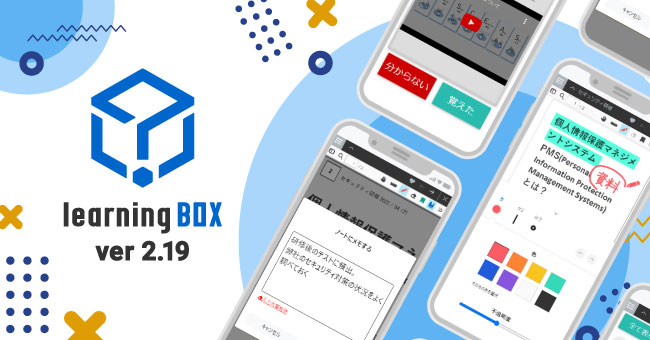
learningBOX-2.19

learningBOX updated to Ver. 2.19

About this Version Upgrade Thank you for using learningBOX. Today, learningBOX has been upgraded from Ver. 2.18 to 2.19. Let us introduce you to the various new features. *As part of security enhancement, WAF (Web Application Firewall) will be introduced in the shared environment from this release. For details, please refer to the “Notice of Security Enhancements”. LearningBOX Ver2.19 List of New Functions Item Name New Functions/Functional Improvements Content Management Expansion of PDF functionality Expansion of test mode setting User Management Date format / Time format Reordering of groups Grade Management Score correction settings Expansion of chart functionality Display/Hide grade result settings Addition of items to be displayed/hide grade results File uploading of correction results when grading reports Upload file of correction results when grading reports Grading by report question Learning environment settings Detailed explanation of badges Other functions Use of login ID when reissuing passwords Design customization Limited functions Curriculum selection limit settings Expansion of training functions Expansion of site customizer functions Addition of API linkage items Registration screen URL Downloading of registration screen URL Addition of item for PUSH notification when badge is acquired Setting of sender name for from mail Dedicated server-only functionality Unique SSO Account billing support Expansion of CardGenerator memorization card functionality This version update includes the following features that have been requested by many customers: shuffling of memorization card questions, insertion of audio, and the ability to create a new memorization card. This upgrade includes the ability to shuffle the order of memorization cards, insert audio, correct questions after users have answered them, and reorder groups on the user management screen, as requested by many of our customers. In addition, we have added a number of features that are available with a shared server/customization or dedicated server subscription. Expanded PDF functionality Now you can not only view PDFs, but also highlight important content and make notes on them. Please note, however, that extensive use of highlighting and pens on PDFs may result in grade data not being imported. CardGenerator-Expansion of memorization card functions You can now shuffle the order of questions on memorization cards and insert audio files [mp3]/chemistry formulas/equations. Users can now correct the correctness of questions after they have completed the quiz/test. Group Reordering Allows users to reorder registered groups in any order. Expansion of test mode settings Previously, items hidden in the test mode settings remained hidden unless the settings were manually changed. Starting with this version, hidden items can be automatically switched to be displayed when the conditions set in the "Overall Settings" are met. Date/Time Format You can set the date and time display format on the learningBOX. Expansion of chart functions In the "Tag List" screen of the chart, the contents can now be narrowed down and displayed by "section tag," "question tag," and time period. Added a new item for displaying/hiding grade results. Uploading Correction Result Files when Grading Reports When grading reports, it was only possible to enter feedback comments, but now it is possible to upload correction result files. Individual" Grading of Reports When grading a quiz or test with multiple questions in the "Report/Survey" format, you were previously unable to save the results until you had completed grading for all the questions. However, starting with this version, it is now possible to save the results during the grading process. Detailed description of a badge can be included in the modal screen that opens when a badge is acquired or when a badge is viewed in the "Badge List" or "Select Course" screen. You can also set whether or not to display the detailed description. Use of Login ID for Password Reissue When you forgot your login password, you used to need to enter your registered e-mail address to reissue a password. From this version, you can specify not only your e-mail address but also your login ID to reissue your password. Curriculum Selection Limit Settings A new limit setting has been added from the Curriculum Function Basic Settings to limit the content that can be taken at the same time. Expansion of training functionality The archive function has been added, and training reservations can now be approved or disapproved in batches. Users can now also cancel training reservations. Expansion of the Site Customizer The Site Customizer function has been expanded to allow users to freely change the layout of newly added menus. In addition, it is now possible to edit not only the side menu but also the header menu. Addition of API linkage items By linking learningBOX user information as an API item, users can now study SCORM materials without the need to log in. Download of registration screen URLs It is now possible to download a CSV file of the list of registered groups and issued URLs for group registration URLs in the account application registration function. Unique SSO Account Billing Support Through a unique SSO linkage with the customer's core system, users can be redirected to the "Plan Selection" screen when they register an account. Account billing must be set as mandatory on the "Account Billing Management" screen. The following three items have been added to the JSON of the PUSH notification sent when a badge is acquired. score" = number of points of the content when a badge is acquired * "score" is not sent when a badge is set for a course/folder. In addition to changing the from mail address, you can now set the sender name of the mail. Please contact our CS sales team if you have any questions or need more information. We will continue to listen to our customers' voices and improve the functionality of the system to make it more user-friendly. We look forward to your continued support of LearningBOX/QuizGenerator.
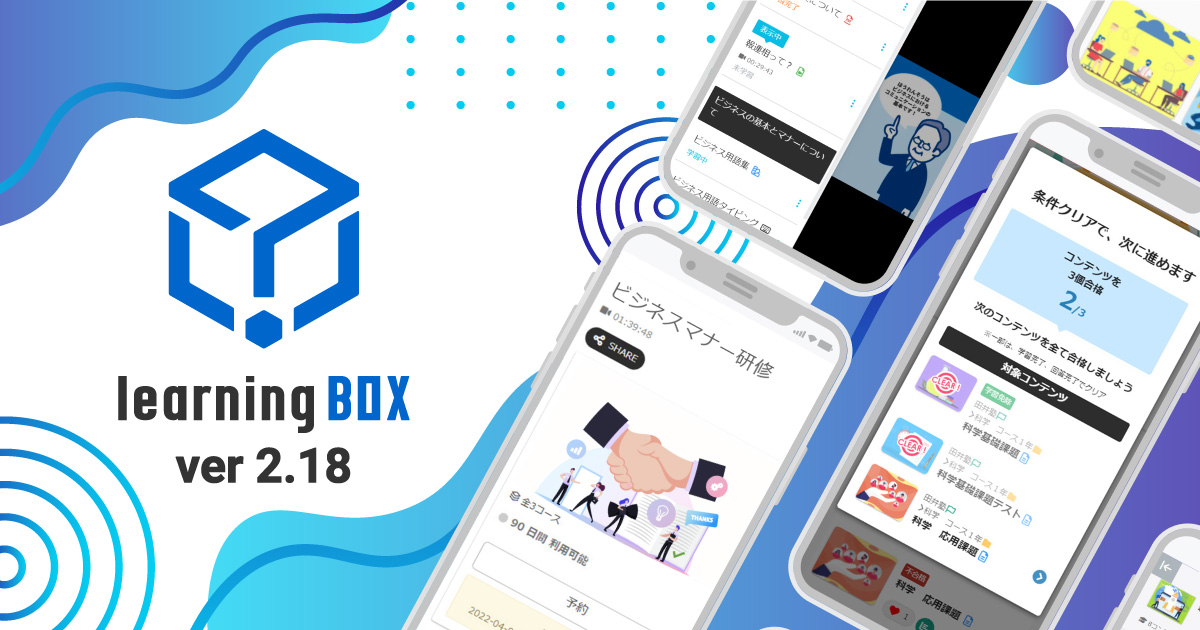
learningBOX-2.18

learningBOX upgraded to Ver. 2.18

About This Version Update Thank you very much for your continued use of learningBOX. Today, learningBOX has been updated from Version 2.17 to 2.18. In this article, we will provide a detailed overview of Version 2.18 (released on July 6, 2022), which includes various new features. ▼learningBOX Ver. 2.18 New Features List Item Name New Features/Functional Improvements Course Selection Course Navigation Content Management PowerPoint Course Materials Expanded Report Card Features Quiz/Test Interruption Data Detection Feature Content Pre-Explanation Management Content Redirect Feature Removal of the "List of Submitted Reports" and "Report Grading Management" screens Management of Exemptions from Grading and Analysis Expanded Grade Management Features User Management Unified User Management Content Management Viewing Permissions Adding/Removing Group Membership via CSV Expanded Registration Field Settings Design Customization Limited-Function Authentication Code Settings (Per Registration URL) Contract Status: Automatic Renewal of Paid Plans E-commerce Features Training Features In this version update, the appearance and functionality of two screens have been significantly revamped. Specifically, "My Page" has been replaced by the "Dashboard," and the "Study" screen has been replaced by the "Select Course" screen. Additionally, contract-related features have been expanded, including the addition of a paid option to import PowerPoint materials and automatic renewal of paid plan subscriptions.   Course Navigation: A list of other content within the same course is now displayed on the content learning screen. This allows users to view the entire course from the learning screen without having to return to the "Select Course" screen.   PowerPoint Course Materials: You can now upload course materials created in PowerPoint directly to learningBOX. Please note that this requires subscribing to the paid "PowerPoint Course Material Import" option. Expanded Report Card Functionality: The report card feature now reflects the latest results in real time and is viewable by administrators.   Quiz and Test Interruption Detection A feature has been added that detects data where quizzes or tests were interrupted and notifies the editor. Content Pre-Study Guidance Management This feature allows you to display an announcement regarding explanations or precautions related to a piece of content before a user clicks on it to begin studying on the learning screen.   Content Redirect Function When using SCORM learning materials, you can specify and redirect users to any desired content. Discontinuation of the "List of Submitted Reports" and "Report Grading Management" Screens Starting with Ver. 2.18, the "List of Submitted Reports" and "Report Grading Management" screens will be discontinued.   Exemption Designation Management: If there are users who need to study specific courses or content and others who do not, you can configure settings to exempt individual users from studying that content. Note that even if an exemption is designated, users can still choose to study the content.   Expanded Grade Management Features The name of the "By Question" tab has been changed to "By Learning Material," and a search function has been added to its contents. Additionally, grade data for each learning material can now be filtered and extracted based on conditions such as time period or group. Furthermore, new features such as the ability to download report content and grade analysis have been added.   User Consolidation Management You can consolidate grades, badges, and login information from two different accounts (an inactive account and an active account). Content Management View Permissions A new "View" permission has been added to content management permissions. The View permission does not allow users to edit content; it only allows them to view what content is available.   Adding/Removing Group Membership via CSV When registering users in bulk via CSV, you can set the "Add Group Membership" and "Remove Group Membership" fields. Expansion of Registration Field Settings In "Registration Field Settings," you can now set the login ID to be hidden. If you enable this setting, the login ID will no longer be displayed on the user profile edit screen. Authentication Code Settings (Per Registration URL) You can set a unique authentication code for each URL. Automatic Renewal of Paid Plans Paid plans can now be set to renew automatically. If you enable automatic renewal, customers will no longer need to submit a renewal request each time.   Training Feature The training feature allows you to set up training sessions by specifying the date and time. Users can search for and reserve the training sessions they want, and owners can approve or reject reservation requests.   Other Information For detailed instructions or if you have any questions, please contact our CS Sales Team. ● Contact Form We will continue to listen to your feedback and work on improving our features to make your experience even more enjoyable. We appreciate your continued support of learningBOX and QuizGenerator.

How to create SCORM-compliant e-learning materials

This article provides examples of creating teaching materials for learningBOX using SCORM 1.2. Please note that some of the examples may not work outside of learningBOX (in such cases, a cautionary statement will be included). Also, please note that this article has been verified with learningBOX 2.16.14, and older versions or versions to be released in the future may not give identical results. What are SCORM materials on learningBOX? On learningBOX, you can upload and use SCORM 1.2 compliant materials. (*As of learningBOX 2.16.14, uploading SCORM archives (ZIP files) consisting of multiple SCOs is not supported. Also, please note that SCORM versions other than 1.2, such as SCORM 2004, are not supported) Back to Table of Contents Minimum SCORM Materials [File Structure] In learningBOX, if the startup file is index.html, the manifest file ( imsmanifest.xml: a file showing the structure in the ZIP file) is not necessary. (However, almost all LMS require the imsmanifest.xml file. QuizGenerator, CardGenerator, etc. output imsmanifest.xml for compatibility). Note on creating a ZIP file When compiling your materials into a ZIP file, please select and compress the files as shown below. As in the bad example, selecting a folder and compressing it may create an extra folder hierarchy and cause trouble. Also, in the case of Mac, if you use the OS standard ZIP archive function, extra files will be saved, so unnecessary files will be mixed in the problem! Please compress with reference to “Be careful when zipping on a Mac,” etc. API search When the startup file (e.g. index.html) is loaded in the SCORM teaching material, the SCORM API is searched. In learningBOX 2.16 or later, the API is also provided in the preview screen of the teaching material, but the preview screen does not save the grades. Example code: The API is searched for in onload and made accessible via a variable called API of the teaching material, displaying API Found in the console if the API is found, or API not Found if it is not found. (Reference: gist's URL https://gist.github.com/ynishi2014/8d1d951966d12d49c1eee898b4bacc17 Execution example When mounted on learningBOX, the API for SCORM can be found, so the API found“ will be displayed. If you run it on a local drive, etc., it cannot find the API, so it will display API not found. Once the LMSInitialize and LMSFinish APIs are found, execute LMSInitialize. LMSFinish is executed when learning is completed. Please note that grades cannot be sent before or after LMSInitialize is executed. Code Example (Reference) gist's URL https://gist.github.com/ynishi2014/d44930df2eddaa2f4140aab078e5e86f Execution Example When executed with learningBOX, the following is displayed. This alone is a valid SCORM teaching material, but since the learning status (cmi.core.lesson_status) is not updated, it appears that no grades are left on the learningBOX. This is because a grade with cmi.core.lesson_status browsed is treated as an invalid grade in learningBOX. SCORM teaching materials that only pass the test If you set cmi.core.lesson_status to passed in LMSSetValue, it will pass the test. Code Example (Reference) gist's URL https://gist.github.com/ynishi2014/4eb9a00dff3ff867d51192548471a919 Statuses that can be sent The values that can be sent to cmi.core.lesson_status as grades are, The values that can be sent to cmi.core.lesson_status as grades are as follows incomplete: being studied completed: completed passed: passed failed: failed browsed: not displayed Behavior when grades are not sent If grades are not sent, the following will occur First time learning: browsed (not displayed) Second and subsequent learning: inherits the grades from the previous learning session Therefore, you need to be careful about the behavior when you close the material before the grades are determined. status is set to ”browsed“ at the beginning of QuizGenerator, so if you close the course before starting to answer the questions, ”browsed“ will be recorded and it will appear that no grades are left. To check the operation It is best to check the operation with the LMS you plan to use, but since learningBOX can be used by up to 10 users free of charge and indefinitely, it may be easy to use it as an environment for developing and checking the operation of SCORM teaching materials. Visualizing API calls Visualizing API calls can improve development efficiency. Due to the size of the article, we will summarize this in another article. Back to Table of Contents Information that can be sent within the SCORM 1.2 specification In addition to the status (cmi.core.lesson_status) mentioned earlier, the following results can also be sent. By sending these, you can get detailed information on how learning is progressing, which can lead to analysis of the learning situation, appropriate feedback to the learner, and improvement of teaching materials. Score (cmi.core.score.raw) The score, in SCORM 1.2, can be an integer between 0 and 100 in ”string“ format. Example API.LMSSetValue(”cmi.core.score.raw", "100");API. .score.raw", score.toFixed(0)); In the original extended learningBOX, scores over 100 are allowed. For example, 105 and 400 are accepted as valid scores. However, please note that negative numbers and decimals are not allowed. Also, in LMSs other than learningBOX, scores exceeding 100 will result in an error. Time (cmi.core.session_time) This is the learning time, which in the case of learningBOX is automatically measured when LMSInitialize and LMSFinish are executed. If you want to measure more accurate learning time than the time between opening and closing the material, please measure it in the material and send it to us; in QuizGenerator, the time between starting to solve a problem and the result display screen, and in video material, only the time when the video is playing is sent. The following will result in 1 hour, 2 minutes, and 3 seconds. Example API.LMSSetValue(“cmi.core.session_time”, "01:02:03"); Information per question This is a child item of cmi.interactions.n. n must be specified starting from 0. Usage such as starting from 1, skipping numbers, or going back to a smaller number is not allowed. ID (cmi.interactions.n.id) ID. The ID is displayed in the grade details screen as shown in the red frame of the screenshot below. Note that negative numbers and decimals are not allowed, so if you plan to download the grades in CSV or use the API to retrieve the grades, you must specify an appropriate ID. latency (cmi.interactions.n.latency) The time required. The following will be displayed in the grade details screen. correct_responses (cmi.interactions.n.correct_responses.m.pattern) Example of correct responses. Multiple responses can be specified, but only one is likely to be set in most cases. objectives (cmi.interactions.n.objectives.m.id) The objective of each question, i.e., the purpose or goal to be achieved, etc. Values in the format s:xxx are section tags, and values in the format q:xxx are question tags. The value in the format s:xxx will be reflected in the medical record. student_response (cmi.interactions.n.student_response) The student's response. It sends the string entered by the learner, the choice number, and so on. time (cmi.interactions.n.time) The learning time. The time spent on the question is sent. result (cmi.interactions.n.result) Send correct or wrong. Neutral and score can also be sent. Back to Table of Contents Original Extension of learningBOX Normally, cmi.interactions.n.student_response cannot send HTML. Sending Answers in HTML Of course, you can send HTML tags, but the results screen will display the HTML tags you send as is. If you specify html in cmi.interactions.n.student_response_format, cmi. interactions.n.student_response will be interpreted and displayed as HTML. However, JavaScript is restricted so that it cannot be executed. About character limit relaxation Start time / End time (to be supported in 2.18 or later) This function is used to record the start time and end time of the learning process. (Scheduled for release in June 2022) Back to Table of Contents Anti-pattern [Excessive LMSCommit] When LMSCommit is executed, the value set in LMSSetValue is saved. In many LMSs, LMSSetValue does not send data to the server, but sends data to the server at the timing of LMSCommit. This is because the process of sending data to the server takes a relatively long time, and if communication were to take place each time LMSSetValue is executed, processing would be time-consuming. For example, if the number of questions is 100, the number of LMSSetValues per question is 6, and the communication delay is 10 ms, then 100 x 6 x 10 = 6000 ms, which means that it takes 6 seconds to send results. Since the communication delay can be 10 times or more for overseas users, LMSCommit should not be executed excessively. When LMSCommit should be executed It should be executed after cmi.core.lesson_status is sent or after LMSSetValue of all grades is finished. By sending "complete" to cmi.core.lesson_status and executing LMSCommit when learning has started, the grades seen by others (teachers, administrators, etc.) will change to "learning". After the LMSSetValue of all grades has been completed, LMSCommit and LMSFinish should be executed in that order. (*In learnngBOX, even if LMSCommit is not executed before LMSFinish, the process of sending grades will still be executed, so LMSFinish alone is acceptable. The SCORM specification requires that LMSFinish be executed at the end of the process, so there is no guarantee of behavior if LMSFinish is not executed. LMSSetValue without checking implementation SCORM1.2 compliant LMSs do not necessarily implement all of the SCORM1.2 specifications. Therefore, before executing LMSSetValue, you should check whether the element you are trying to send is implemented. Back to Table of Contents If you have any questions about usage, please feel free to contact our support. If you have any problems or questions about how to use learningBOX, please feel free to contact us anytime. We also recommend you to read this page! Back to Table of Contents
<br class="br-trp" />

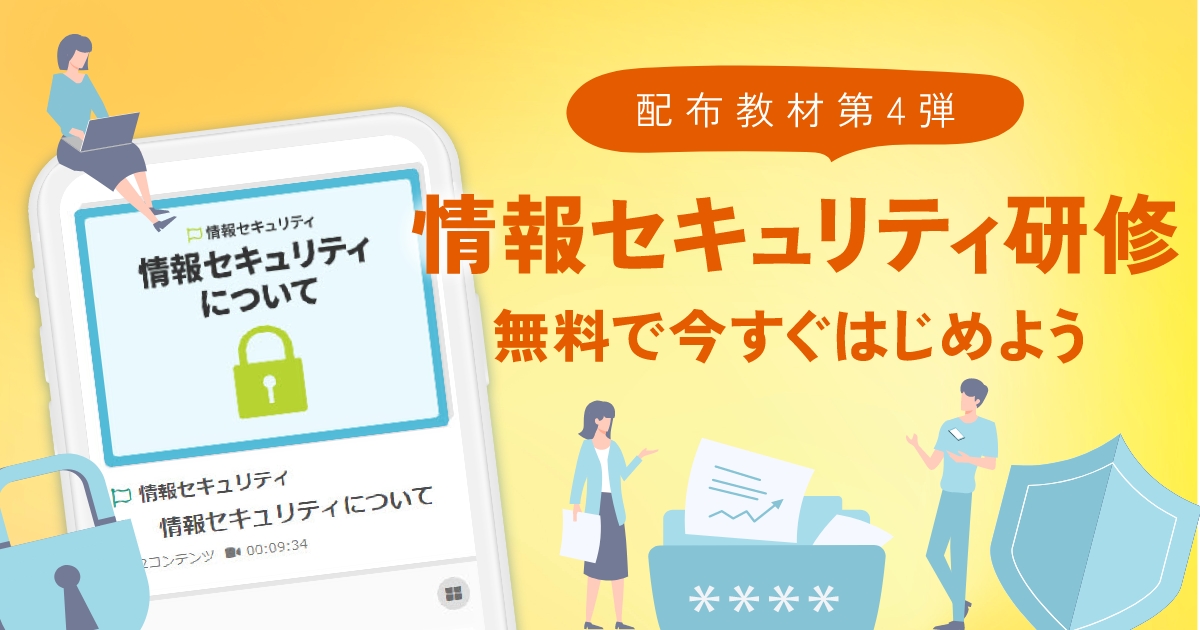
Started offering free information security educational materials

As part of our 10th-anniversary commemorative initiatives, we launched "learningBOX ON" in April 2022—learningBOX’s first service offering free educational materials. Our first release featured "Harassment Prevention Materials," followed by "Business Etiquette Materials" in the second release, and "Compliance Materials" in the third. Now, as our fourth release, we are pleased to announce the launch of our “Information Security Materials.” Background of the Free Release The revised Personal Information Protection Act came into effect in April 2022. This amendment strengthens the protection of individuals’ rights and imposes additional obligations on businesses. Consequently, further efforts are required to ensure the protection of personal information. In light of the above, we are making the "Information Security Training Materials" available for free on learningBOX with the aim of contributing to the promotion of information security education within companies. Return to Table of Contents Features of the Learning Content In this training, participants will learn about what information security entails and what actions to take to protect confidential information through explanatory videos and quizzes. Content About Information Security Protecting Confidential Information What You Can Do to Manage Information Target Audience Users of learningBOX [Shared Server] (including the Free Plan) How to Use New Customers STEP 1: Please register via the free trial. STEP 2: After completing your free trial registration, we will send you a confirmation email. Please log in to learningBOX and select "Compliance" from "Choose a Course." Existing learningBOX Customers STEP 1: Please log in to learningBOX and open Content Management. STEP 2: Click the "+" icon. Select "learningBOX ON" "10th Anniversary Free Content" and "Information Security." Return to Table of Contents Let’s Make the Most of learningBOX ON! You can combine training content available on learningBOX ON with your company’s in-house content to create original training programs. Please make full use of learningBOX ON for your in-house training as an environment that enables continuous learning without being restricted by schedule or location. ≫ Click here for a free trial ▼ You might also like! Related articles Return to Table of Contents
Newcomer Training - Compliance

Compliance materials are now available free of charge.

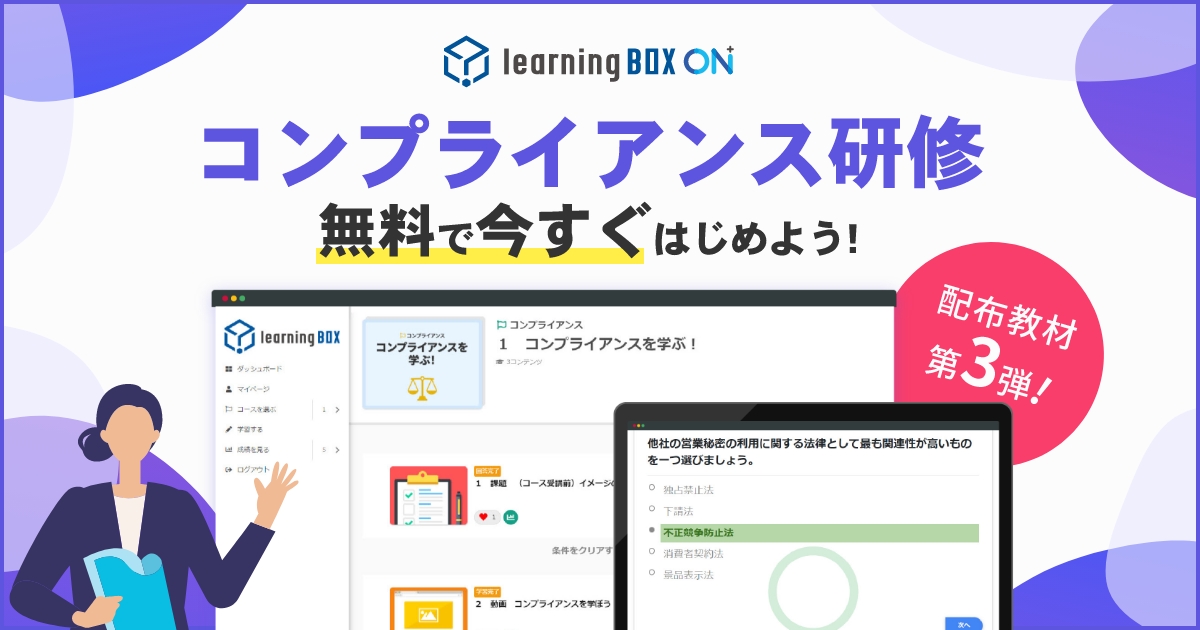
As part of our 10th-anniversary commemorative initiatives, we have launched “learningBOX ON” as a token of our gratitude to our valued customers. learningBOX ON is the first service from learningBOX to offer free educational content. Background of the Free Release Recently, news regarding corporate misconduct and employee scandals has frequently made headlines. Behavior that lacks compliance awareness spreads instantly throughout the public sphere, not only significantly damaging a company’s image but also leading to a loss of social trust—and in the worst-case scenario, potentially resulting in bankruptcy. Against this backdrop, with the aim of contributing to the widespread adoption of compliance training within companies, we are making “Compliance Training Materials” available for free on learningBOX. Back to Table of Contents Features of the Learning Content In this training, participants will learn about topics such as “What is compliance?” and “Laws and regulations that must be followed” through explanatory videos and review quizzes. Contents What Is Compliance? Laws That Must Be Observed by Business Type Employment Regulations and Industry Rules Comprehension Test Ignorance of the Law Copyright, Right of Publicity, Right to Privacy, Trademark Rights, and Right to Reputation Understanding of Rights Check Target Audience Users of learningBOX [Shared Server] (including the Free Plan) How to Use New Customers STEP 1: Please register for the free trial. STEP 2: After completing your free trial registration, we will send you a registration confirmation email. Please log in to learningBOX and select “Compliance” from “Choose a Course.” Existing learningBOX Users STEP 1: Log in to learningBOX and open Content Management. STEP 2: Select the “+” icon, then “learningBOX ON,” “10th Anniversary Free Content,” and “Compliance.” Return to Table of Contents Let’s Make the Most of learningBOX ON! You can also create original training programs by combining the training content available on learningBOX ON with content developed in-house. Please make full use of learningBOX ON for your in-house training as an environment that enables continuous learning without being constrained by schedules or locations. ≫ Click here for a free trial ▼ You might also like! Related Articles Return to Table of Contents
blog

Visualize learners' "weak points," analyze their progress.
Let's enhance effective e-learning.

[Visualizing Weaknesses] Using e-Learning to Graph Learners“ ”Weak Areas” / Analyzing Performance to Enhance Learning Outcomes By using the quiz feature and report cards in our e-learning system, you can generate “score distributions and item-level analysis” from learners’ response data. In this article, we’ll introduce “Learner Answer Analysis” using the [Tagging Feature] in learningBOX’s quiz function and its report feature. Administrators can instantly see learners’ levels of understanding, identify areas for improvement, and grasp scores and overall trends by subject. If you’re a customer struggling with how to “analyze and aggregate” learner answer trends and score distributions, Please use this article as a guide and give learningBOX’s quiz feature and grade reports a try. Table of Contents: Easily Create Exams Online | Visualize Answer Data at a Glance with Grade Management | Radar Charts in Grade Reports Are Recommended for Score Analysis | Summary Easily Create Exams Online: With learningBOX’s quiz feature, anyone can easily create tests. Even if you’re not confident in your computer skills or IT knowledge, you can create a test in just a few minutes using the question creation form. You can combine 13 different question formats—including multiple-choice, true/false, and fill-in-the-blank—to create your test. Additionally, by setting completion requirements, you can impose restrictions—for example, allowing only those who have studied the displayed learning material to proceed to the next practice questions. Assigning Tags to Questions Using the “Tagging Feature” within the quiz function, you can assign tags to the questions you create. When learners study questions with tags assigned, you can aggregate and analyze the “number of correct and incorrect answers and the accuracy rate by tag” in the Grade Management report feature. Since you can categorize questions in greater detail according to your objectives and needs, please make full use of this feature to identify learners’ weak areas and facilitate self-analysis. Tags can be set for each section within [Quizzes/Tests] or for questions within the same category. How to Use the Tagging Feature You set tags while creating [Quizzes/Tests] from the Content Management screen. Step 1. Open the Content Management screen Click “Content Management” on the top page or in the side menu. Step 2. Create a Quiz/Test In this example, we’ll create one using the question creation form. Click the “+” icon in the upper-left corner of the screen, then select “Learning Materials,” “Quizzes & Tests,” and either “Create Quiz” or “Create Test.” *Be sure to create a course on the Content Management homepage and then create the quiz or test within that course. Step 3. Set Tags Click “Edit Tabs” below the questions. For section tags, click “+ Add Section,” then click “Edit Tags” below the section. *When setting up a section, set “Mode” to “Normal Mode” in the options. Answer Data Visualized at a Glance in Grade Management Learners’ grades can be viewed in “Grade Management” and the “Learner Profile” feature. Use “Grade Management” for overall grade tracking and the “Learner Profile” for individual learner performance management and analysis.   How to Use the Tagging and Student Profile Features When learners take a quiz or test with tags assigned, their performance data for each tag is displayed on the Student Profile screen. By using the Student Profile, you can visualize, based on graphs and performance data, how much learners study each day, what types of questions they excel at or struggle with, and more. You can also download all performance data in bulk as a CSV file. About Viewing Performance Data in the Learner Profile Here, we’ll walk you through the steps to view detailed performance data in the Learner Profile. Step 1. Open the "Student Profile" screen. Click “Grading & Analysis” and then “Student Profile” in the side menu. Step 2. Select the target learner. A list of learners will be displayed; click “Details” to the right of the target learner. Step 3. Viewing Performance Information by Tag: Click the “Tag List” tab. Here, you can view the number of correct and incorrect answers, the total number of responses, the time taken, and the accuracy rate for each tag. Note that you can also filter the tag list by content, time period, or search criteria. *To display only specific content, select the desired content in the “Learning Progress” section at the bottom of the “Basic Information” tab. Step 4. Display only section tags. Click “Section Tags Only” to display only the performance data for section tags. We recommend using the radar chart analysis in the report card for score analysis. Using the learningBOX report card, you can graph scores and score percentages for multiple items together, allowing you to identify learners’ strengths and weaknesses at a glance.   Here are the features of the report card: 1. You can check the balance of scores and percentage scores for each item. 2. You can identify which areas are weak points. *For detailed instructions on how to use it, please refer to this report card. Feature 1: Check the balance of scores and percentage scores for each item. Feature 2: Identify areas of weakness. Summary: In this article, we introduced “Learner Answer Analysis” using learningBOX’s quiz feature [Tagging Function] and the report card. Administrators can instantly see learners’ levels of understanding, identify areas for improvement, and review scores and overall trends by subject. Our e-learning system, [learningBOX], is available free of charge to everyone—from individuals to businesses. If you’re considering implementing an e-learning system, we encourage you to give our learningBOX a try. ⇒ Try learningBOX for free

Started offering free business manner teaching materials

Tatsuno Information Systems Co., Ltd. (Headquarters: Tatsuno City, Hyogo Prefecture; President and CEO: Yoichiro Nishimura), a developer of e-learning systems, has launched “learningBOX ON” as part of its 10th-anniversary commemorative initiatives, expressing its gratitude to its customers. learningBOX ON is the first service from learningBOX to offer free learning content. Background of the Free Release: Tatsuno Information Systems is making “business etiquette training materials for corporations” available for free on learningBOX with the aim of contributing to corporate new employee training and strengthening risk management. Business etiquette is a fundamental skill that every working professional should master. Without proper business etiquette, even if you possess excellent skills, your work may not proceed smoothly. Have you ever felt a sense of unease regarding the language and behavior of young people these days? In the workplace, business etiquette is about showing consideration, empathy, and respect for others. Back to Table of Contents Features of the Learning Content learningBOX ON is a service that allows you to easily add essential corporate training content to the learning management system, learningBOX. You can easily design original learning courses by combining this content with content developed in-house. Contents: The Importance of Business Etiquette; 5 Key Elements; About Honorifics; Honorifics Chart; Honorifics to Avoid; Honorifics Flashcards; Test Your Honorifics Proficiency; “5 Key Points” for Online Etiquette; Target Audience: Users of learningBOX [Shared Server] (including the Free Plan) How to Sign Up New Customers STEP 1: Please register for the free trial. STEP 2: After completing your free trial registration, we will send you a confirmation email. Log in to learningBOX and select “Business Etiquette” from the “Choose a Course” menu. Existing learningBOX Customers STEP 1: Log in to learningBOX and open Content Management. STEP 2: Select the “+” icon > “learningBOX ON” > “10th Anniversary Free Content” > “Business Etiquette.” Return to Table of Contents Let’s Make the Most of learningBOX ON! You can also create your own original training programs by combining the training content available on learningBOX ON with content developed in-house. Please take advantage of learningBOX ON for your in-house training as an environment that enables continuous learning without being restricted by schedule or location. ≫ Click here for a free trial ▼ You might also like! Related Articles Return to Table of Contents
blog

Harassment educational materials are now available free of charge.

Tatsuno Information Systems Co., Ltd. (Headquarters: Tatsuno City, Hyogo Prefecture; President and CEO: Yoichiro Nishimura), a developer of e-learning systems, is launching “learningBOX ON” as part of its 10th-anniversary commemorative initiatives, expressing its gratitude to its customers. “learningBOX ON” is the first service from learningBOX to offer free learning content. Background of the Free Release The Comprehensive Promotion of Labor Measures Act (Power Harassment Prevention Act) was amended, making measures against power harassment in the workplace mandatory for large companies starting June 1, 2020. As of April 1, 2022, this Power Harassment Prevention Act also became mandatory for small and medium-sized enterprises (SMEs). Against this backdrop, Tatsuno Information Systems is making “Harassment Training Materials for Small and Medium-Sized Enterprises” available for free on learningBOX, with the aim of contributing to the strengthening of risk management for these companies. Return to Table of Contents Features of the Learning Content “learningBOX ON” is a service that allows you to easily add essential corporate training content to learningBOX, an e-learning creation and management system. You can easily design original learning courses by combining this content with content developed in-house. Contents For Managers: Power Harassment Checklist; Definition of Power Harassment; Judging the Gray Areas of Guidance; The Significance of Eliminating Harassment; From Harassment Countermeasures to Management Strategies What You Can Do to Eliminate “Harassment” Sexual Harassment Checklist Awareness of Sexual Harassment Definition of Sexual Harassment Types of Perpetrators Common Misconceptions Among Perpetrators New Employees and General Employees: Common Types of Harassment; Recommended Responses; Report Assignments; What Would You Do If You Were a Victim of Harassment?; What to Do If You Feel You Are Being Harassed Target Audience: Users of learningBOX [Shared Server] (including the Free Plan) How to Use: New Customers STEP 1: Please register for the free trial. STEP 2: After completing your free trial registration, we will send you a confirmation email. Please log in to learningBOX and select “Harassment” from “Choose a Course.” For Customers Already Using learningBOX STEP 1: Please log in to learningBOX and open Content Management. STEP 2: Click the “+” icon, then select “learningBOX ON” “10th Anniversary Free Content” and “Harassment.” Return to Table of Contents Let’s Make the Most of learningBOX ON! You can combine the training content available on learningBOX ON with your company’s in-house content to create original training programs. Please make full use of learningBOX ON for your in-house training as an environment that enables continuous learning without being restricted by schedule or location. ≫ Click here for a free trial ▼ You might also like! Related Articles Return to Table of Contents
learningBOX-ver2.17

learningBOX upgraded to Ver. 2.17

About This Version Update Thank you very much for your continued use of learningBOX. Today, learningBOX was updated from Version 2.16 to 2.17. In this article, we will provide a detailed overview of Version 2.17.13 (released on March 9, 2022), which includes various new features. Click here for a list of new features and improvements New Features Improvements 1. Course Enhancements 13. Enhanced Compatible Device Check Feature 2. Headings/Clear Conditions 14. Enhanced Two-Factor Authentication Feature 3. Multiple-Choice Content Settings 15. Enhanced Test Mode Settings 4. Grade Reports 16. Viewing Permissions for Group Management and Grade Management 5. Page Designer 17. Bulk Group Registration and Download Features 6. Media Management 18. Additional Breadcrumb Display Locations 7. Function to Display Question Answers and Grading Comments 19. Toggle for Displaying Course Details 8. Message Box Management Permissions 20. Basic Video Settings 9. Video Duration Display Function 21. Same-Day Access to Design Customization Now Available 10. Automatic Continuous Video Playback Feature 22. Addition of Authentication Failure Information to Access Logs 11. Curriculum/Course Descriptions 12. Welcome Page Redisplay Feature In this version update, the “Course Features” have been revamped, significantly changing the appearance of the learning screen. In addition, many new features have been added, including improvements to existing functions and the expansion of features that can be integrated via the API. Now, let me introduce the 2.17 series update in detail. Expanded Course Features The top of the learning screen has been unified to display only course materials, resulting in a simpler appearance and making it easier to customize.   Headings/Completion Conditions: The traditional learning control functions have been completely revamped and replaced with completion conditions. This allows for more complex condition settings than before. Multiple-Choice Content Settings: This feature allows learners to select just one item from multiple learning materials to study. Report Cards: You can now create custom report cards and distribute them as content within a course.   Page Designer: It is now easier to modify the design of pages created with the Site Customizer. Media Management: By registering videos and learning materials in learningBOX, you can now access them via CDN without having to upload media files for each individual piece of content. Question Answers/Feedback Display: You can view answers and feedback for specific questions.   Message Box Management Permissions: Authorized users can send messages to groups and other users. Video Duration Display: The duration of video content is now displayed on the “Search for Curriculum” and “Select a Course” screens. Automatic Continuous Video Playback: When multiple video clips are available, they now play automatically one after another.   Curriculum/Course Descriptions: Descriptions can now be displayed on the “Search for Curricula” and “Select a Course” screens. Welcome Page Redisplay Feature: The welcome page can now be redisplayed. Expanded Device Compatibility Check: The system now automatically loads learningBOX’s recommended system requirements, and a [Back] button has been added to the compatible devices list screen.   Enhanced Two-Factor Authentication: You can now configure two-factor authentication for specific groups. Enhanced Test Mode Settings: In Test Mode settings, you can now configure the display of grade details with greater precision. View-Only Permissions for Group and Grade Management: For Member Management and Grade Management permissions, you can now grant view-only access.   Bulk Group Registration and Download Features: The CSV format for bulk group registration has been updated to a more intuitive layout. Additional Breadcrumb Display Locations: Breadcrumbs are now displayed on the “Public Courses,” “Select a Course,” and “Course Details” screens.   Course Description Display Toggle: You can now choose whether to display the course or folder description shown at the top of the “Start Learning” screen. Basic Video Settings: You can now configure basic video settings, such as the playback speed range and shadows. This feature is available for video content using MOVIE Player version 2.1.0 or higher.   Same-Day Access to Design Customization: When you order design customization via the order screen, you can now use it on the same day. Addition of Authentication Failure Information to Access Logs: Information regarding authentication failures is now displayed in the access logs. Other: For detailed instructions or if you have any questions, please contact our CS Sales Team. ●Contact Form We will continue to listen to our customers’ feedback and work on improving our features to make your experience even more enjoyable. Details regarding the new features and improvements added in learningBOX Ver. 2.17 are also provided in these release notes. We appreciate your continued support of learningBOX and QuizGenerator.
blog

[Recommended for video training! What is learningBOX's video delivery system?

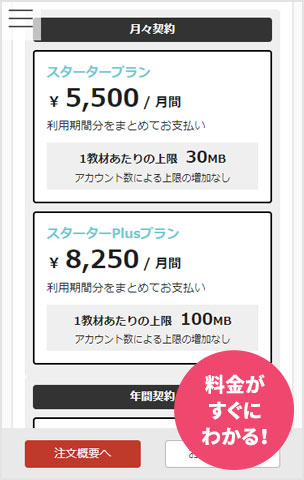
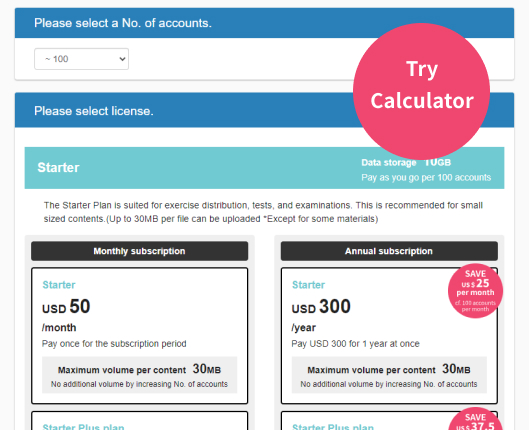
[Recommended for Video Training!] What Is learningBOX’s Video Delivery System? Hello, I’m Okuda, a Project Manager (PM) in the Development Department. In this article, I’ll introduce learningBOX’s video delivery system. Our e-learning platform is an LMS that allows anyone to easily create learning materials and upload video content with ease. For delivery, we use the “streaming method,” which is commonly adopted by video streaming sites today. learningBOX offers several delivery methods, including streaming, so I’ll explain them here.   Table of Contents 1. What Are the Best Video-on-Demand (VOD) Services for e-Learning? 2. Features of Streaming and Download Delivery 3. The Streaming Technology Used by learningBOX 4. We Recommend the Premium Plan for High-Quality Video Viewing! 5. Summary What Are the Best Video-on-Demand (VOD) Services for e-Learning? VOD stands for “Video on Demand” and refers to a service that allows users to watch movies and TV shows for a flat monthly fee via the internet. It’s a service that lets you watch videos on various devices at home—including PCs, smartphones, tablets, and even game consoles—via the internet or mobile data connections. There are various types of VOD services, ranging from those specializing in movies to those offering a wide selection of Japanese TV dramas. For example, YouTube is a video streaming service that can be used for free. Online Video Streaming Currently, online video streaming allows users to enjoy movies and TV shows through subscription-based services such as Netflix and Amazon Prime Video. In addition, there are now numerous platforms catering to a wide range of audience sizes, from user-generated content sites like YouTube and TikTok to live streams such as Instagram Live and webinars. Furthermore, the devices on which videos can be viewed are diverse, with most services offering standard support for viewing on PCs, tablets, and smartphones.   Characteristics of Streaming and Download-Based Distribution On-demand distribution is broadly categorized into “streaming” and “download-based distribution.” *On-demand distribution refers to a method where viewers watch content that has been created in advance and uploaded to a server at the time they request it. What Is Streaming? Streaming is a technology that allows users to comfortably view large files, such as videos, over a network connection. Since large data files on the server are loaded in small increments and played sequentially, users can watch content without worrying about download times or the storage capacity of their devices. What Is Download-Based Distribution? Download-based distribution is a method where the entire file is downloaded to the device before playback begins. Before the widespread adoption of streaming, download-based distribution was the standard method for video distribution. In this method, video data is downloaded from the provider to the user’s device before playback begins.   The Shift from Download to Streaming Just as the U.S. music market shifted from downloads to streaming around 2015, the trend in video distribution has also shifted toward streaming as the mainstream method. In the past, the predominant method involved downloading video data completely to the device and then playing the video file separately. On Windows systems, users would download files such as WMV or MP4, and on Mac systems, MOV files, and play them using players like Windows Media Player. Other methods included restricting playback to specific players based on the system or using systems integrated with DRM (Digital Rights Management). However, with the widespread adoption of 4G and 5G networks as well as broadband—which has led to year-on-year improvements in transfer speeds—and the emergence of new streaming standards, the industry has shifted toward streaming distribution. This shift not only helps prevent storage congestion on devices but also supports copyright protection by preventing the redistribution of content. Of course, downloads haven’t disappeared entirely, and services that still offer download-based distribution continue to exist. In particular, to meet the demand for offline viewing—such as the desire to “watch content on a tablet or smartphone even in places without an internet connection while out and about”—many subscription-based streaming services provide dedicated apps that allow users to download content while ensuring proper content protection.   Streaming Technology Used by learningBOX Here, we’ll introduce the distribution methods used by learningBOX. learningBOX offers two versions of its movie player—Version 1 and Version 2—which use different distribution formats. Version 1 uses the “progressive download method,” while Version 2 uses the “HLS streaming method.” Let’s take a look at the characteristics of each.   Progressive Download Method “Progressive download,” also known as “pseudo-streaming,” is a method in which content is temporarily stored in the cache of a computer or smartphone before playback begins. Even in poor network conditions, playback remains smooth once the data has been downloaded. On the other hand, since the content is temporarily stored on the device, there are concerns regarding copyright protection and the potential for it to take up space on the hard drive. HLS (HTTP Live Streaming) Method Unlike the progressive download method described above, the “streaming method” only transfers the video currently being played to the user, leaving no data on the device. Basically, as long as you have an Internet connection with sufficient transfer speed, smooth playback is possible, and even during long playback sessions, it does not take up space on your hard drive. The HLS (HTTP Live Streaming) format is a streaming protocol developed by Apple. It is currently the most widely used standard for streaming. You can check which version is currently specified for learningBOX under “Learning Environment Settings,” and you can also change the version. Please choose the appropriate setting based on your environment. We recommend the Premium Plan for watching videos in high quality! Depending on the plan you use with learningBOX, the video quality during playback varies. The higher your plan tier, the higher the video quality you can upload. No matter how high the quality of your video files is, the video may appear lower in quality if your current plan doesn’t support it. When using video learning materials, choose a plan that suits your environment so that learners can study without feeling stressed. For more details on pricing plans, please see the learningBOX Pricing Plans page. ▼Click here for recommended articles about videos Summary: In this article, we introduced learningBOX’s video delivery system. Our e-learning platform is an LMS that allows anyone to easily create learning materials and upload video content. Even those without programming knowledge can easily get started with e-learning, and a free trial is available. ▼Also recommended! Read this related article: “[Frontiers of Education] Conducting Effective New Employee Training with Video and e-Learning”
Find more about learningBOX