learningBOX

159 articles
blog

Visualize learners' "weak points," analyze their progress.
Let's enhance effective e-learning.

[Visualizing Weaknesses] Using e-Learning to Graph Learners“ ”Weak Areas” / Analyzing Performance to Enhance Learning Outcomes By using the quiz feature and report cards in our e-learning system, you can generate “score distributions and item-level analysis” from learners’ response data. In this article, we’ll introduce “Learner Answer Analysis” using the [Tagging Feature] in learningBOX’s quiz function and its report feature. Administrators can instantly see learners’ levels of understanding, identify areas for improvement, and grasp scores and overall trends by subject. If you’re a customer struggling with how to “analyze and aggregate” learner answer trends and score distributions, Please use this article as a guide and give learningBOX’s quiz feature and grade reports a try. Table of Contents: Easily Create Exams Online | Visualize Answer Data at a Glance with Grade Management | Radar Charts in Grade Reports Are Recommended for Score Analysis | Summary Easily Create Exams Online: With learningBOX’s quiz feature, anyone can easily create tests. Even if you’re not confident in your computer skills or IT knowledge, you can create a test in just a few minutes using the question creation form. You can combine 13 different question formats—including multiple-choice, true/false, and fill-in-the-blank—to create your test. Additionally, by setting completion requirements, you can impose restrictions—for example, allowing only those who have studied the displayed learning material to proceed to the next practice questions. Assigning Tags to Questions Using the “Tagging Feature” within the quiz function, you can assign tags to the questions you create. When learners study questions with tags assigned, you can aggregate and analyze the “number of correct and incorrect answers and the accuracy rate by tag” in the Grade Management report feature. Since you can categorize questions in greater detail according to your objectives and needs, please make full use of this feature to identify learners’ weak areas and facilitate self-analysis. Tags can be set for each section within [Quizzes/Tests] or for questions within the same category. How to Use the Tagging Feature You set tags while creating [Quizzes/Tests] from the Content Management screen. Step 1. Open the Content Management screen Click “Content Management” on the top page or in the side menu. Step 2. Create a Quiz/Test In this example, we’ll create one using the question creation form. Click the “+” icon in the upper-left corner of the screen, then select “Learning Materials,” “Quizzes & Tests,” and either “Create Quiz” or “Create Test.” *Be sure to create a course on the Content Management homepage and then create the quiz or test within that course. Step 3. Set Tags Click “Edit Tabs” below the questions. For section tags, click “+ Add Section,” then click “Edit Tags” below the section. *When setting up a section, set “Mode” to “Normal Mode” in the options. Answer Data Visualized at a Glance in Grade Management Learners’ grades can be viewed in “Grade Management” and the “Learner Profile” feature. Use “Grade Management” for overall grade tracking and the “Learner Profile” for individual learner performance management and analysis.   How to Use the Tagging and Student Profile Features When learners take a quiz or test with tags assigned, their performance data for each tag is displayed on the Student Profile screen. By using the Student Profile, you can visualize, based on graphs and performance data, how much learners study each day, what types of questions they excel at or struggle with, and more. You can also download all performance data in bulk as a CSV file. About Viewing Performance Data in the Learner Profile Here, we’ll walk you through the steps to view detailed performance data in the Learner Profile. Step 1. Open the "Student Profile" screen. Click “Grading & Analysis” and then “Student Profile” in the side menu. Step 2. Select the target learner. A list of learners will be displayed; click “Details” to the right of the target learner. Step 3. Viewing Performance Information by Tag: Click the “Tag List” tab. Here, you can view the number of correct and incorrect answers, the total number of responses, the time taken, and the accuracy rate for each tag. Note that you can also filter the tag list by content, time period, or search criteria. *To display only specific content, select the desired content in the “Learning Progress” section at the bottom of the “Basic Information” tab. Step 4. Display only section tags. Click “Section Tags Only” to display only the performance data for section tags. We recommend using the radar chart analysis in the report card for score analysis. Using the learningBOX report card, you can graph scores and score percentages for multiple items together, allowing you to identify learners’ strengths and weaknesses at a glance.   Here are the features of the report card: 1. You can check the balance of scores and percentage scores for each item. 2. You can identify which areas are weak points. *For detailed instructions on how to use it, please refer to this report card. Feature 1: Check the balance of scores and percentage scores for each item. Feature 2: Identify areas of weakness. Summary: In this article, we introduced “Learner Answer Analysis” using learningBOX’s quiz feature [Tagging Function] and the report card. Administrators can instantly see learners’ levels of understanding, identify areas for improvement, and review scores and overall trends by subject. Our e-learning system, [learningBOX], is available free of charge to everyone—from individuals to businesses. If you’re considering implementing an e-learning system, we encourage you to give our learningBOX a try. ⇒ Try learningBOX for free

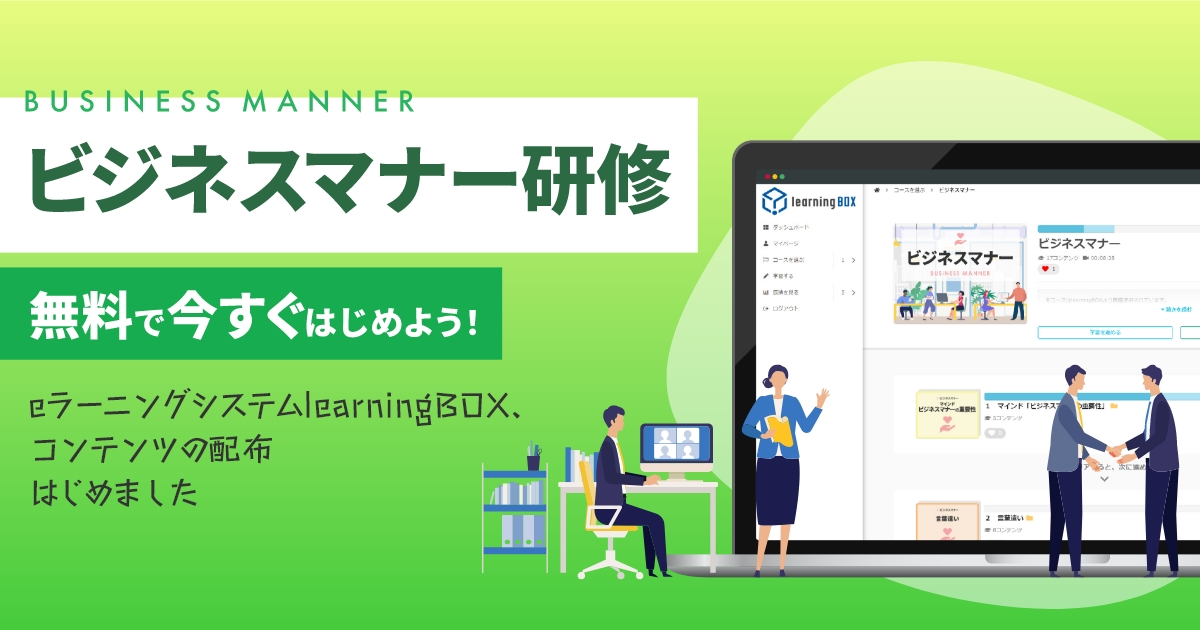
Started offering free business manner teaching materials

Tatsuno Information Systems Co., Ltd. (Headquarters: Tatsuno City, Hyogo Prefecture; President and CEO: Yoichiro Nishimura), a developer of e-learning systems, has launched “learningBOX ON” as part of its 10th-anniversary commemorative initiatives, expressing its gratitude to its customers. learningBOX ON is the first service from learningBOX to offer free learning content. Background of the Free Release: Tatsuno Information Systems is making “business etiquette training materials for corporations” available for free on learningBOX with the aim of contributing to corporate new employee training and strengthening risk management. Business etiquette is a fundamental skill that every working professional should master. Without proper business etiquette, even if you possess excellent skills, your work may not proceed smoothly. Have you ever felt a sense of unease regarding the language and behavior of young people these days? In the workplace, business etiquette is about showing consideration, empathy, and respect for others. Back to Table of Contents Features of the Learning Content learningBOX ON is a service that allows you to easily add essential corporate training content to the learning management system, learningBOX. You can easily design original learning courses by combining this content with content developed in-house. Contents: The Importance of Business Etiquette; 5 Key Elements; About Honorifics; Honorifics Chart; Honorifics to Avoid; Honorifics Flashcards; Test Your Honorifics Proficiency; “5 Key Points” for Online Etiquette; Target Audience: Users of learningBOX [Shared Server] (including the Free Plan) How to Sign Up New Customers STEP 1: Please register for the free trial. STEP 2: After completing your free trial registration, we will send you a confirmation email. Log in to learningBOX and select “Business Etiquette” from the “Choose a Course” menu. Existing learningBOX Customers STEP 1: Log in to learningBOX and open Content Management. STEP 2: Select the “+” icon > “learningBOX ON” > “10th Anniversary Free Content” > “Business Etiquette.” Return to Table of Contents Let’s Make the Most of learningBOX ON! You can also create your own original training programs by combining the training content available on learningBOX ON with content developed in-house. Please take advantage of learningBOX ON for your in-house training as an environment that enables continuous learning without being restricted by schedule or location. ≫ Click here for a free trial ▼ You might also like! Related Articles Return to Table of Contents
blog

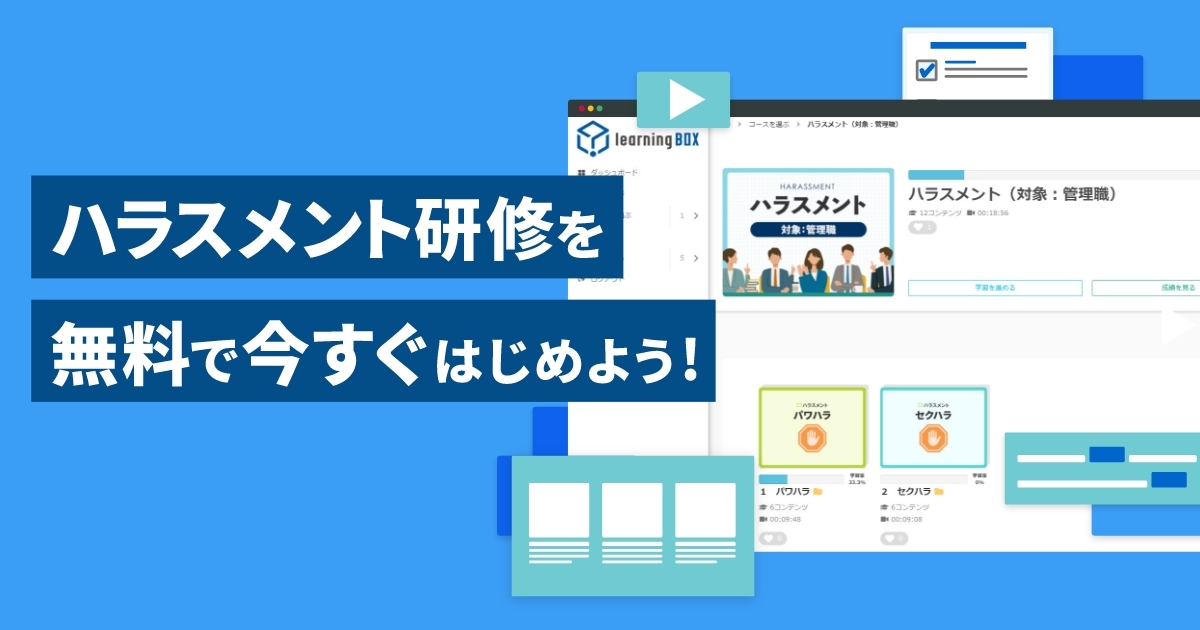
Harassment educational materials are now available free of charge.

Tatsuno Information Systems Co., Ltd. (Headquarters: Tatsuno City, Hyogo Prefecture; President and CEO: Yoichiro Nishimura), a developer of e-learning systems, is launching “learningBOX ON” as part of its 10th-anniversary commemorative initiatives, expressing its gratitude to its customers. “learningBOX ON” is the first service from learningBOX to offer free learning content. Background of the Free Release The Comprehensive Promotion of Labor Measures Act (Power Harassment Prevention Act) was amended, making measures against power harassment in the workplace mandatory for large companies starting June 1, 2020. As of April 1, 2022, this Power Harassment Prevention Act also became mandatory for small and medium-sized enterprises (SMEs). Against this backdrop, Tatsuno Information Systems is making “Harassment Training Materials for Small and Medium-Sized Enterprises” available for free on learningBOX, with the aim of contributing to the strengthening of risk management for these companies. Return to Table of Contents Features of the Learning Content “learningBOX ON” is a service that allows you to easily add essential corporate training content to learningBOX, an e-learning creation and management system. You can easily design original learning courses by combining this content with content developed in-house. Contents For Managers: Power Harassment Checklist; Definition of Power Harassment; Judging the Gray Areas of Guidance; The Significance of Eliminating Harassment; From Harassment Countermeasures to Management Strategies What You Can Do to Eliminate “Harassment” Sexual Harassment Checklist Awareness of Sexual Harassment Definition of Sexual Harassment Types of Perpetrators Common Misconceptions Among Perpetrators New Employees and General Employees: Common Types of Harassment; Recommended Responses; Report Assignments; What Would You Do If You Were a Victim of Harassment?; What to Do If You Feel You Are Being Harassed Target Audience: Users of learningBOX [Shared Server] (including the Free Plan) How to Use: New Customers STEP 1: Please register for the free trial. STEP 2: After completing your free trial registration, we will send you a confirmation email. Please log in to learningBOX and select “Harassment” from “Choose a Course.” For Customers Already Using learningBOX STEP 1: Please log in to learningBOX and open Content Management. STEP 2: Click the “+” icon, then select “learningBOX ON” “10th Anniversary Free Content” and “Harassment.” Return to Table of Contents Let’s Make the Most of learningBOX ON! You can combine the training content available on learningBOX ON with your company’s in-house content to create original training programs. Please make full use of learningBOX ON for your in-house training as an environment that enables continuous learning without being restricted by schedule or location. ≫ Click here for a free trial ▼ You might also like! Related Articles Return to Table of Contents
learningBOX-ver2.17

learningBOX upgraded to Ver. 2.17

About This Version Update Thank you very much for your continued use of learningBOX. Today, learningBOX was updated from Version 2.16 to 2.17. In this article, we will provide a detailed overview of Version 2.17.13 (released on March 9, 2022), which includes various new features. Click here for a list of new features and improvements New Features Improvements 1. Course Enhancements 13. Enhanced Compatible Device Check Feature 2. Headings/Clear Conditions 14. Enhanced Two-Factor Authentication Feature 3. Multiple-Choice Content Settings 15. Enhanced Test Mode Settings 4. Grade Reports 16. Viewing Permissions for Group Management and Grade Management 5. Page Designer 17. Bulk Group Registration and Download Features 6. Media Management 18. Additional Breadcrumb Display Locations 7. Function to Display Question Answers and Grading Comments 19. Toggle for Displaying Course Details 8. Message Box Management Permissions 20. Basic Video Settings 9. Video Duration Display Function 21. Same-Day Access to Design Customization Now Available 10. Automatic Continuous Video Playback Feature 22. Addition of Authentication Failure Information to Access Logs 11. Curriculum/Course Descriptions 12. Welcome Page Redisplay Feature In this version update, the “Course Features” have been revamped, significantly changing the appearance of the learning screen. In addition, many new features have been added, including improvements to existing functions and the expansion of features that can be integrated via the API. Now, let me introduce the 2.17 series update in detail. Expanded Course Features The top of the learning screen has been unified to display only course materials, resulting in a simpler appearance and making it easier to customize.   Headings/Completion Conditions: The traditional learning control functions have been completely revamped and replaced with completion conditions. This allows for more complex condition settings than before. Multiple-Choice Content Settings: This feature allows learners to select just one item from multiple learning materials to study. Report Cards: You can now create custom report cards and distribute them as content within a course.   Page Designer: It is now easier to modify the design of pages created with the Site Customizer. Media Management: By registering videos and learning materials in learningBOX, you can now access them via CDN without having to upload media files for each individual piece of content. Question Answers/Feedback Display: You can view answers and feedback for specific questions.   Message Box Management Permissions: Authorized users can send messages to groups and other users. Video Duration Display: The duration of video content is now displayed on the “Search for Curriculum” and “Select a Course” screens. Automatic Continuous Video Playback: When multiple video clips are available, they now play automatically one after another.   Curriculum/Course Descriptions: Descriptions can now be displayed on the “Search for Curricula” and “Select a Course” screens. Welcome Page Redisplay Feature: The welcome page can now be redisplayed. Expanded Device Compatibility Check: The system now automatically loads learningBOX’s recommended system requirements, and a [Back] button has been added to the compatible devices list screen.   Enhanced Two-Factor Authentication: You can now configure two-factor authentication for specific groups. Enhanced Test Mode Settings: In Test Mode settings, you can now configure the display of grade details with greater precision. View-Only Permissions for Group and Grade Management: For Member Management and Grade Management permissions, you can now grant view-only access.   Bulk Group Registration and Download Features: The CSV format for bulk group registration has been updated to a more intuitive layout. Additional Breadcrumb Display Locations: Breadcrumbs are now displayed on the “Public Courses,” “Select a Course,” and “Course Details” screens.   Course Description Display Toggle: You can now choose whether to display the course or folder description shown at the top of the “Start Learning” screen. Basic Video Settings: You can now configure basic video settings, such as the playback speed range and shadows. This feature is available for video content using MOVIE Player version 2.1.0 or higher.   Same-Day Access to Design Customization: When you order design customization via the order screen, you can now use it on the same day. Addition of Authentication Failure Information to Access Logs: Information regarding authentication failures is now displayed in the access logs. Other: For detailed instructions or if you have any questions, please contact our CS Sales Team. ●Contact Form We will continue to listen to our customers’ feedback and work on improving our features to make your experience even more enjoyable. Details regarding the new features and improvements added in learningBOX Ver. 2.17 are also provided in these release notes. We appreciate your continued support of learningBOX and QuizGenerator.
blog

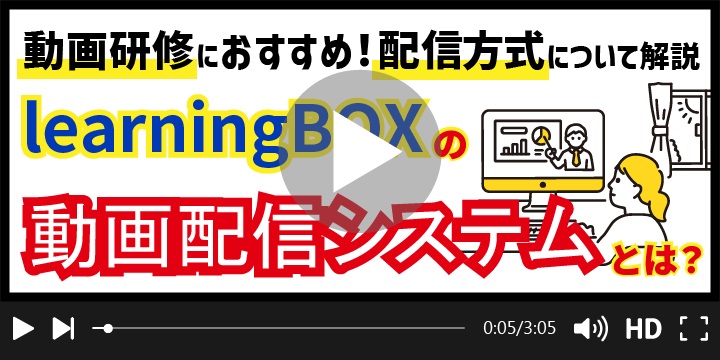
[Recommended for video training! What is learningBOX's video delivery system?

[Recommended for Video Training!] What Is learningBOX’s Video Delivery System? Hello, I’m Okuda, a Project Manager (PM) in the Development Department. In this article, I’ll introduce learningBOX’s video delivery system. Our e-learning platform is an LMS that allows anyone to easily create learning materials and upload video content with ease. For delivery, we use the “streaming method,” which is commonly adopted by video streaming sites today. learningBOX offers several delivery methods, including streaming, so I’ll explain them here.   Table of Contents 1. What Are the Best Video-on-Demand (VOD) Services for e-Learning? 2. Features of Streaming and Download Delivery 3. The Streaming Technology Used by learningBOX 4. We Recommend the Premium Plan for High-Quality Video Viewing! 5. Summary What Are the Best Video-on-Demand (VOD) Services for e-Learning? VOD stands for “Video on Demand” and refers to a service that allows users to watch movies and TV shows for a flat monthly fee via the internet. It’s a service that lets you watch videos on various devices at home—including PCs, smartphones, tablets, and even game consoles—via the internet or mobile data connections. There are various types of VOD services, ranging from those specializing in movies to those offering a wide selection of Japanese TV dramas. For example, YouTube is a video streaming service that can be used for free. Online Video Streaming Currently, online video streaming allows users to enjoy movies and TV shows through subscription-based services such as Netflix and Amazon Prime Video. In addition, there are now numerous platforms catering to a wide range of audience sizes, from user-generated content sites like YouTube and TikTok to live streams such as Instagram Live and webinars. Furthermore, the devices on which videos can be viewed are diverse, with most services offering standard support for viewing on PCs, tablets, and smartphones.   Characteristics of Streaming and Download-Based Distribution On-demand distribution is broadly categorized into “streaming” and “download-based distribution.” *On-demand distribution refers to a method where viewers watch content that has been created in advance and uploaded to a server at the time they request it. What Is Streaming? Streaming is a technology that allows users to comfortably view large files, such as videos, over a network connection. Since large data files on the server are loaded in small increments and played sequentially, users can watch content without worrying about download times or the storage capacity of their devices. What Is Download-Based Distribution? Download-based distribution is a method where the entire file is downloaded to the device before playback begins. Before the widespread adoption of streaming, download-based distribution was the standard method for video distribution. In this method, video data is downloaded from the provider to the user’s device before playback begins.   The Shift from Download to Streaming Just as the U.S. music market shifted from downloads to streaming around 2015, the trend in video distribution has also shifted toward streaming as the mainstream method. In the past, the predominant method involved downloading video data completely to the device and then playing the video file separately. On Windows systems, users would download files such as WMV or MP4, and on Mac systems, MOV files, and play them using players like Windows Media Player. Other methods included restricting playback to specific players based on the system or using systems integrated with DRM (Digital Rights Management). However, with the widespread adoption of 4G and 5G networks as well as broadband—which has led to year-on-year improvements in transfer speeds—and the emergence of new streaming standards, the industry has shifted toward streaming distribution. This shift not only helps prevent storage congestion on devices but also supports copyright protection by preventing the redistribution of content. Of course, downloads haven’t disappeared entirely, and services that still offer download-based distribution continue to exist. In particular, to meet the demand for offline viewing—such as the desire to “watch content on a tablet or smartphone even in places without an internet connection while out and about”—many subscription-based streaming services provide dedicated apps that allow users to download content while ensuring proper content protection.   Streaming Technology Used by learningBOX Here, we’ll introduce the distribution methods used by learningBOX. learningBOX offers two versions of its movie player—Version 1 and Version 2—which use different distribution formats. Version 1 uses the “progressive download method,” while Version 2 uses the “HLS streaming method.” Let’s take a look at the characteristics of each.   Progressive Download Method “Progressive download,” also known as “pseudo-streaming,” is a method in which content is temporarily stored in the cache of a computer or smartphone before playback begins. Even in poor network conditions, playback remains smooth once the data has been downloaded. On the other hand, since the content is temporarily stored on the device, there are concerns regarding copyright protection and the potential for it to take up space on the hard drive. HLS (HTTP Live Streaming) Method Unlike the progressive download method described above, the “streaming method” only transfers the video currently being played to the user, leaving no data on the device. Basically, as long as you have an Internet connection with sufficient transfer speed, smooth playback is possible, and even during long playback sessions, it does not take up space on your hard drive. The HLS (HTTP Live Streaming) format is a streaming protocol developed by Apple. It is currently the most widely used standard for streaming. You can check which version is currently specified for learningBOX under “Learning Environment Settings,” and you can also change the version. Please choose the appropriate setting based on your environment. We recommend the Premium Plan for watching videos in high quality! Depending on the plan you use with learningBOX, the video quality during playback varies. The higher your plan tier, the higher the video quality you can upload. No matter how high the quality of your video files is, the video may appear lower in quality if your current plan doesn’t support it. When using video learning materials, choose a plan that suits your environment so that learners can study without feeling stressed. For more details on pricing plans, please see the learningBOX Pricing Plans page. ▼Click here for recommended articles about videos Summary: In this article, we introduced learningBOX’s video delivery system. Our e-learning platform is an LMS that allows anyone to easily create learning materials and upload video content. Even those without programming knowledge can easily get started with e-learning, and a free trial is available. ▼Also recommended! Read this related article: “[Frontiers of Education] Conducting Effective New Employee Training with Video and e-Learning”
learningBOX-New features

7 useful features for conducting online exams with leaningBOX!

7 Handy Features for Conducting Online Exams with learningBOX! Hello, nice to meet you! I’m Sakatani from the Quality Control Department, and I joined the company in April. It’s been getting quite chilly in the mornings and evenings lately—how is everyone doing? ▼learningBOX was recently updated to Version 2.16. November 17, 2020: learningBOX Updated to Version 2.16 Thank you very much for using the e-learning creation system, learningBOX. Today, learningBOX was updated from Version 2.15 to 2.16. In this article, we’ll introduce the specific new features added in Version 2.16.7 (released November 17, 2021). With these new additions, we’ve added many features that are useful when conducting online exams! In this article, we’ll introduce the convenient features available when conducting online exams using learningBOX! Table of Contents: 1. Allow students to take only specified exams 2. Specify test takers and the exam period 3. Restrict access to exam questions to specified IP addresses 4. Learning content is added based on test results 5. You can check the test environment and devices before the test begins 6. No need to worry even if your internet connection becomes unstable! 7. You can grade exams in Excel 8. Summary Allow test-takers to take only specific exams By assigning learning materials only to the specific exam questions you want test-takers to take, even if there are other exam questions in the same folder or course, test-takers will only be able to view and answer the exam questions you’ve assigned! ⇒ Content Assignment: Specify test takers and the testing period. By setting a publication period, test takers can answer questions during that time. Furthermore, since you can specify particular groups for the publication period settings, you can configure settings such as “extend the publication period only for test takers belonging to a specified group”! ⇒ Setting the Availability Period: Only specified IP addresses can access exam questions. You can specify which IP addresses are allowed to view and take each exam. Since exam questions are only displayed when accessed from a specified IP address, this helps prevent cheating! ⇒ Source IP Restriction Feature: Learning Content Is Added Based on Exam Results For example, you can configure the system to add learning content based on exam results—such as “If the candidate passes Exam A, display and allow them to take Exam B,” or “If the candidate fails Exam A, display and allow them to take Exam C.” ⇒ Linked Content Configuration Feature: Verify the testing environment and device before the exam begins. You can specify the OS, browser, and version of the device used to take the online exam in detail. Additionally, before answering exam questions, you can run tests to check if the internet connection speed is adequate and if audio is audible. This helps prevent issues from occurring during the exam! ⇒Functionality Test Settings: Peace of mind even if your internet connection becomes unstable! Even if your internet connection suddenly becomes unstable, “audio files,” “video files,” and “image files” can still be “played” or “displayed.” Therefore, even if your connection becomes unstable during an exam or study session, you can continue without any issues! ⇒ Media Data Preloading Feature: Grade Exams in Excel. For exams that include a report format, simply enter pass/fail results and scores into the downloaded Excel file and upload it to complete the grading of the report-style answers. Since you can grade multiple pieces of content for multiple test-takers all at once, this also saves time! ⇒ Report Grading Believe it or not, all of the above features were added in Version 2.16! Many new features have been added to ensure that both test takers and exam organizers can conduct exams with peace of mind. If you’re already using learningBOX for exams, please update your existing exams. If you’re considering creating a new exam, please sign up for a free administrator account and try out these new features! Summary: In this article, we’ve summarized the new features added in learningBOX 2.16 that can be used for exams. In addition to the new features introduced here, learningBOX continues to make it easy—even for those who aren’t tech-savvy—to create exams using images, audio, and video; set limits on the number of attempts; and manage test-taker scores. Please be sure to use learningBOX when creating online exams!! Please see this article for information on how to utilize learningBOX for online certification exams and online tests. June 12, 2020: Creating Online Certification Exams and Online Tests with learningBOX. For administrators struggling because tests and exams cannot be administered at schools or cram schools due to home learning. Companies and associations that administer certification exams and are struggling to hold scheduled certification or qualification exams due to the impact of the coronavirus! Our learningBOX may be able to solve your problems. We hope you’ll consider using it after reading this article.
learningbox-vu_216

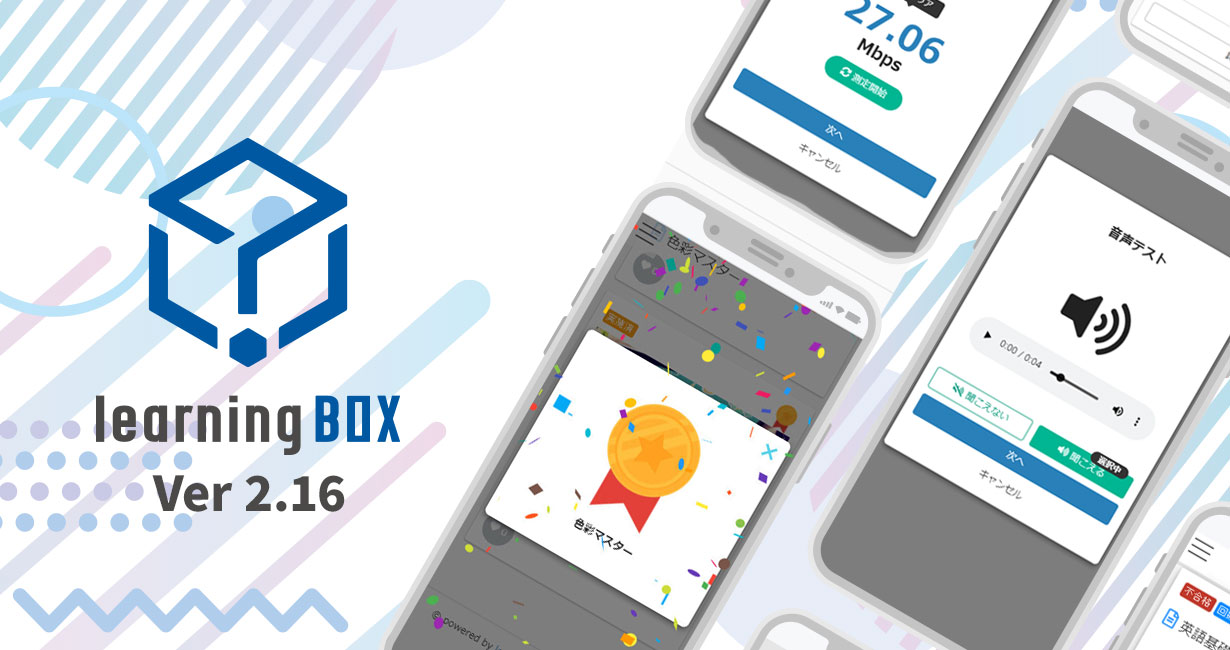
About This Version Update Thank you very much for using the learningBOX e-learning authoring system. Today, learningBOX was updated from Version 2.15 to 2.16. In this article, we will provide a detailed overview of Version 2.16.7 (released November 17, 2021), which includes various new features.   Click here for a list of new features and improvements New Features Feature Improvements 1. Fanfare Feature 11. Group-Specific Email Template Feature 2. Linked Content Settings Feature 12. Section ID (Major Question Number) Feature 3. Pre-Exam Device Compatibility Check Feature 13. Assignment of Individual Learning Materials Feature 4. Customizable Notification Email Settings 14. Survey ID, Tag, and Answer Choice Number Settings 5. Content Code Configuration 15. Source IP Restriction 6. Breadcrumb Navigation 16. Media Data Preloading 7. Answer Choice Numbering 17. Course Basic Settings 8. Group Code Configuration Function 18. Expansion of the Badge Function 9. Essay Grading Function 19. Custom Dashboard Function 10. Publication Period Settings by Group In this version update, the “Fanfare Function”—which had been highly requested—has been newly developed. In addition, many other features have been added, including improvements to existing functions and API integration capabilities. Now, let us introduce the 2.16 series update in detail. Fanfare Feature A feature has been added to display a fanfare when a badge is earned. You can choose from three styles: “Rich,” “Simple,” or “No Animation.”   Conditional Content Settings You can configure the system so that hidden content is displayed only when a specific folder or learning material is marked as “Pass” or “Fail.” Device Compatibility Check Before administering a test, you can check download speeds, login devices, and audio playback. Please note that this feature is available in Quiz version 5.13.5 or later.   Custom Notification Email Settings: This feature allows you to configure whether notification emails are sent on a per-user basis. Users can choose not to receive non-important notification emails. Additionally, administrators can specify whether a notification is “important” or “non-important” when sending it.   Content Code Configuration Feature: You can now set a “content code” when creating or editing learning materials. By assigning a code to the content, you can link it during API integration. Breadcrumb Feature: This feature visually displays where the user is located on the web page. The breadcrumb trail includes links to the pages the user has navigated through.   Answer Selection Tracking: After learners complete a quiz, you can review which answer choices they selected. Group Code Configuration: You can now set “group codes” in member management. Essay Grading: You can send email notifications requesting grading of reports and import the grading results into Excel.   Publication Period Settings by Group: You can set the publication period for content on a per-group basis. Email Template Function by Group: You can set email template editing permissions on a per-group basis. *Note: You can specify target groups for email templates only for invitation notifications and grade management notifications.   Section ID (Major Question Number) Feature: When downloading grade data as a CSV, you can retrieve grade information for each major question. Assignment by Individual Learning Material: Learning materials can be distributed either by group or as individual materials. Survey ID, Tag, and Answer Choice Number Settings: You can view IDs, tags, and answer choice numbers in the survey details.   IP Address Restriction Feature: This feature allows you to restrict access to content from specific IP addresses. Media Data Preloading Feature: Even if the network connection is lost during an exam or study session, the [audio files], [video files], and [image files] for quizzes created in Content Management will play or display offline.   Basic Course Settings: You can configure settings for the entire course. You can also make course information visible to members before they log in. Enhanced Badge Functionality: You can change the default badge images, reorder the list of created badges, and manage badge categories.   Custom Dashboard Feature: This feature allows you to configure the panels displayed on the dashboard and the content of each panel. *Note: Only administrators and members with access permissions to the settings page can configure this feature. Other: For detailed instructions or if you have any questions, please contact our CS Sales Team. ●Contact Form We will continue to listen to our customers’ feedback and work to improve our features to make your experience even more enjoyable. Details regarding the new features and improvements added in learningBOX Ver. 2.16 are also described in detail in these release notes. We appreciate your continued support of learningBOX and QuizGenerator.
learningBOX - use for free

【Free e-learning experience】learningBOX is available for personal use.

Our e-learning system, [learningBOX], is available free of charge to everyone—from individuals to businesses. learningBOX is an LMS equipped with all the features necessary for managing an e-learning program, including course creation, online quizzes, and student performance tracking. This article is perfect for customers who are “interested in e-learning” or “want to give it a try”! In this post, we’ll provide a detailed overview of the features and capabilities of learningBOX, which is already being used by many of our customers.  Implement e-learning even with zero IT knowledge With learningBOX, even those without specialized knowledge can get started with e-learning through simple mouse clicks and text entry. Even those who feel uncomfortable using a computer can easily manage and operate the system. To create content, simply follow the dedicated creation form and learn the process through intuitive, hands-on interaction. learningBOX offers a comprehensive set of content features designed to enhance learning outcomes. In addition to the video materials commonly found in e-learning, you can add a variety of content exclusive to learningBOX, such as quizzes, tests, courses, and report assignments. Created content can be distributed to specific members or groups designated by the administrator, and you can set detailed parameters such as the number of viewings and the publication period. Here are the key features of learningBOX at a glance: You can easily create tests and practice exercises to assess learning outcomes. Since learning materials can be easily distributed via the web, there’s no need for printing or preparing training venues. You can create certification tests for any industry or field. You can use restriction bars to set conditions for course progression. As a special treat, we’ll give you a sneak peek inside the system! Here, we’ll introduce the quiz feature, which is particularly popular among learningBOX’s content functions. Since this is just a practice session, we’ve used the quiz feature to create a single multiple-choice question. If the video is hard to see, please view it in full-screen mode. *learningBOX offers a wide variety of quiz formats. In addition to standard multiple-choice and true/false questions, you can create quizzes using over 13 different formats, including our original fill-in-the-blank, reordering, image selection, and listening questions. Back to Table of Contents: Highlights of the Free Plan The learningBOX Free Plan allows up to 10 users, including the administrator, to use nearly all features for free, with the exception of paid optional features. Any learning materials, user data, and learning environments registered under the Free Plan can be seamlessly upgraded to a paid plan. By adding paid plan options, you can customize the platform to suit your needs, such as setting up original designs or configuring a custom domain. *For details on paid plan services and pricing, please refer to the Pricing Plans page. learningBOX’s concept is “Changing the World Through the Power of EdTech.” Even among those interested in e-learning, many may be hesitant or feel uncomfortable with computer operations and configuration. Most e-learning systems on the market are extremely expensive and are primarily designed for large corporations. Our goal is to create “a system that allows anyone to easily build e-learning courses.” With the spread of the coronavirus, our daily lives have changed dramatically. While Japan is considered a technologically advanced nation, the adoption of ICT in education lags far behind that of other countries. However, looking to Japan’s future, the use of ICT in education is indispensable. Return to Table of Contents: The Role of E-Learning in the COVID-19 Era As the novel coronavirus continues to spread worldwide, Japan is experiencing a “fifth wave” that is spreading at a speed far exceeding previous levels. In Japan, too, many companies and educational institutions are accelerating their efforts to adopt e-learning. E-learning is a learning tool that can effectively support workforce development. Once the learning environment is set up, e-learning can be used repeatedly as many times as needed. Since learners can study at their own pace and review material as often as they like, it is an ideal method for preparing for certifications, exam preparation, and overcoming difficulties in specific subjects. Here are some case studies from companies currently using learningBOX. Are you a manager struggling with e-learning implementation? This page features case studies from companies and schools that are actively using learningBOX. It provides detailed information on the background leading up to their adoption of learningBOX, the challenges they faced, and the results achieved after implementation. Yaruki Switch Group Co., Ltd.: The fact that learningBOX allows learners to take exams as many times as they like has been very well received by our participants. Here’s how we use learningBOX at our company! We use learningBOX for new employee training to conduct simulations that prepare them for real-world work situations. Back to Table of Contents Summary In this article, we’ve provided a brief overview of learningBOX’s features and functions. Our e-learning system is designed to be user-friendly for learners. If you are considering implementing an e-learning system, we encourage you to give our learningBOX a try. You can register for a free learningBOX account here. Thank you for reading this article. ▼Recommended! Related Articles Return to Table of Contents
learningBOX Ver2.15

LearningBOX is upgraded to Ver2.15.

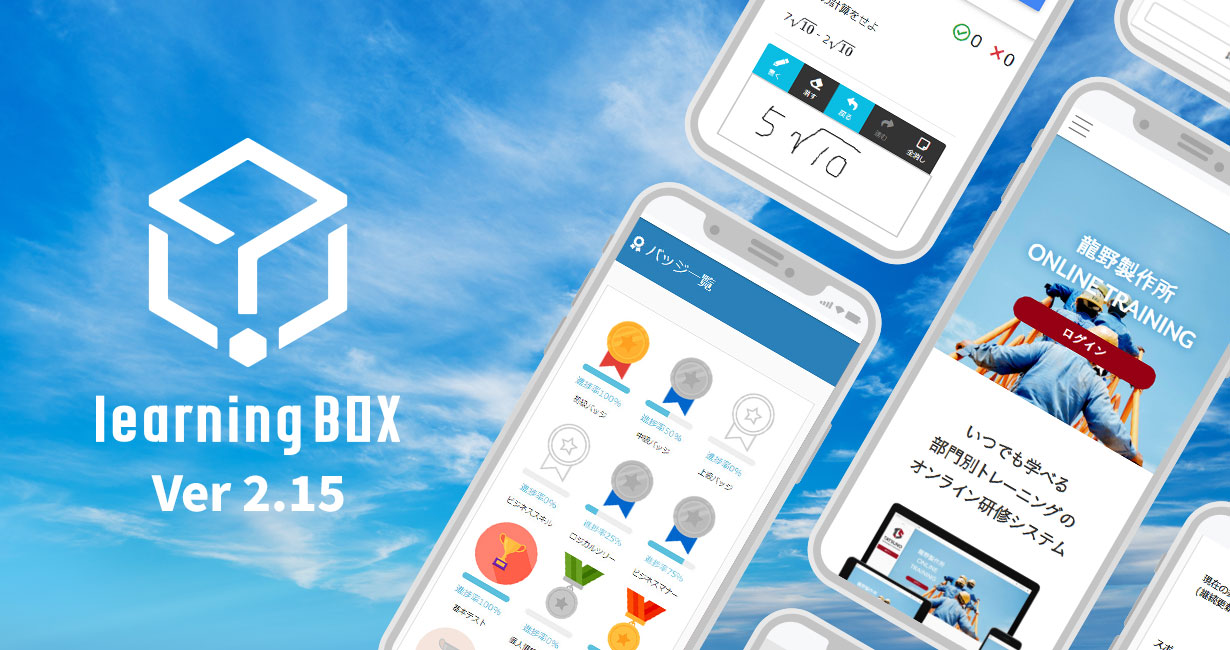
About This Version Update Thank you very much for using the learningBOX e-learning authoring system. Today, learningBOX was updated from Version 2.14 to 2.15. In this article, we will provide a detailed overview of Version 2.15.10 (released on August 25, 2021), which includes various new features.   Click here for a list of new features and improvements New Features Feature Improvements 1. Site Customizer 5. Display alerts on devices logging in from environments other than the recommended ones 2. Handwritten image creation and submission feature (Quizzes/Reports) 6. Set a limit on the number of accounts registered per group 3. Badge list display feature 7. Bulk CSV registration [Permission Granting Feature] 4. Spot Contracts In this version update, the “Site Customizer”—which had been highly requested—has been newly developed. In addition, many features have been added, including improvements to existing functions. Now, let us provide a detailed introduction to the 2.15 series version update.   Site Customizer: This feature allows you to customize your site’s basic information, design, and side menu on your own. *Available only to customers with a shared server plan (with design customization) or a dedicated server plan.   Handwritten Image Creation and Submission Feature (Quizzes/Reports) New features have been added to the [Quizzes & Tests] and [Report Assignments] sections of Content Management. This feature allows learners to submit handwritten text or illustrations as answers. Badge List View Feature This feature allows learners to view a list of the badges they have earned.   Spot Order: A “Spot Add-On Order” feature has been added, allowing you to temporarily increase the number of registered accounts (users) during the term of your current plan. This enables administrators to add registered accounts directly within learningBOX without having to wait for the paid plan to expire.   Alert Display for Devices Logging In Outside Recommended Environments: This feature displays an alert—only on the first attempt—when accessing the system from an OS or browser other than those recommended by our company. Setting Limits on Group Account Numbers: You can set limits on the number of accounts in a group. This setting can be configured by users with group management permissions.   Bulk Registration via CSV [Administrator Permissions] You can now grant administrator permissions to users via bulk registration using a CSV file.   Other For detailed instructions or if you have any questions, please contact our CS Sales Team. ● Contact Form We will continue to listen to our customers’ feedback and work to improve our features to make your experience even more enjoyable. We appreciate your continued support of learningBOX and QuizGenerator.
How to memorize world history! Win the exam! Super-efficient study method

How to memorize world history using e-learning] Super efficient study method to win the exam

[How to Memorize World History Using e-Learning] A Super-Efficient Study Method to Ace Your Exams I’m Takataoka from the Marketing Department. This article is recommended for anyone looking to improve their scores in world history. By making just a few small changes to how you memorize world history, you can dramatically boost your study efficiency. Let’s use the study methods introduced in this article to aim for higher scores in World History! Click here for the Table of Contents 1. A Thorough Analysis and Explanation of World History Memorization Methods 2. Recommended Learning Tools Anyone Can Use for Free 3. E-Learning with learningBOX 4. Summary A Thorough Analysis and Explanation of World History Memorization Methods World History is a subject that requires memorizing a large number of terms and keywords. For this reason, many students find World History to be a challenging subject. However, by learning the correct study methods for World History and putting them into practice, it is also a subject where you can achieve results in a short period of time. Here, we’ll introduce three approaches and study methods for efficiently memorizing world history. #1: Recognize the Importance of “Output” in Studying Output is essential for progressing in your studies and improving your skills. Input—such as reading books and attending lectures to accumulate knowledge—is, of course, important. However, if you focus solely on input without engaging in output, your critical thinking skills may deteriorate. As is common with subjects that rely on memorization, the process of repeatedly cycling between input and output is extremely important. ⇒ It has been proven that repetitive learning—memorizing the same material over and over—transfers information from short-term to long-term memory, making it easier to recall. (This is known as the “rehearsal effect.”) ▼Memory retention depends on output! Dr. Carpick’s experiments on memory Part 2: Practice “one question, one answer” exercises. Generally speaking, when people simply “read” something, they tend to skim over it, making it difficult to memorize effectively. In world history, where the volume of knowledge to be memorized is vast, it is extremely important to solidify each piece of information. Reviewing through “question-and-answer” drills helps prevent situations where you find yourself asking, “Who was that person again?” or “What did that term mean again?” and is expected to help solidify your knowledge. The ultimate goal of studying world history is to understand the flow of history and the cause-and-effect relationships between events. The foundation for this is accurate knowledge of historical terms and their meanings. Part 3: How to Use Your Time for Memorization The key to memorizing world history is, above all, to repeat the material over and over again. Therefore, studying inevitably requires time. The key is to make effective use of spare moments. According to a survey conducted by Panasonic Corporation of 640 men and women in their 20s through 50s, the average person has 1 hour and 9 minutes of spare time per day. Even small pockets of free time add up to a mountain of time. Even if it’s just about an hour a day, that amounts to 360 hours in a year and 7,200 hours over 20 years.   Recommended Learning Tools Anyone Can Use for Free Have you heard of e-learning? E-learning is a method of learning conducted online. learningBOX learningBOX is an e-learning system that allows anyone to easily create a learning environment on the internet. With learningBOX, you can easily export data from an LMS (Learning Management System), which is the platform used to deliver the content. The learning history file stores data necessary for learning management, such as learning progress (not started, in progress, completed, etc.), time of day, duration, and test scores. learningBOX can also quantify this performance data and display it in graphs. ▼Benefits for Learners 1. You can study anytime, anywhere, at your own convenience. 2. You can proceed with your studies based on your level of understanding and progress. 3. You can easily track your performance data and manage your grades. 4. You can engage in preview, review, and revision as many times as you like. Since learningBOX allows you to repeat lessons at your own pace as often as needed, it is an ideal learning method for preparing for certifications, exam preparation, and overcoming weaknesses in specific subjects. E-learning with learningBOX Here, we’ll introduce some practical examples of how to use learningBOX’s content features. ▼This is a video recording of a learner actually solving a problem. You can easily create Q&A-style questions online. With learningBOX, you can easily create your own original questions and exams for learning. Using learningBOX’s quiz feature, you can set the difficulty level of questions, including a timed test mode and the option to display correct/incorrect answers and pass/fail results only after all questions have been completed. The design is extremely simple: you just enter the question text, answers, and explanations using the dedicated creation form. Anyone, even those who aren’t comfortable using a computer, can easily create practice questions for exams. ⇒For detailed instructions, please see the learningBOX User Guide here.   Memorize Key Points with the Fill-in-the-Blank Notebook: learningBOX offers a wealth of features to aid learners in memorization, as well as a wide variety of content designed to help you study independently and efficiently. With the Fill-in-the-Blank Notebook, you can easily create and edit your own memorization materials by adding fill-in-the-blank lines to the content you want to memorize. “Creating questions is time-consuming, I don’t have time to write out questions in the correct format, I want an easy way to check what I’ve memorized, and I want to review and prepare for exams repeatedly.” The Fill-in-the-Blank Notes are the perfect learning tool for anyone facing these challenges. ⇒ For detailed instructions, please see the “How to Use Fill-in-the-Blank Notes” guide here.   Summary: In this article, we introduced recommended study methods for those looking to improve their scores in world history, as well as learningBOX, which anyone can use for free. learningBOX features an incredibly rich and comprehensive selection of content designed to aid learners in memorization and help them proceed efficiently with self-study. Our e-learning system is designed to be easy to set up, even for first-time users. learningBOX even offers a free plan with no time limit. This plan allows up to 10 users, including the administrator, to use nearly all features for free, with the exception of paid optional features. We encourage you to take this opportunity to try out our learningBOX.   ▼ We also recommend this! Be sure to read “Learning English with an e-Learning System”
Find more about learningBOX