Introduce in-house training for new employees using e-learning
Greetings, I am Kozuki 🐰, a new member of the Marketing Department who joined the company this year.
As we start a new fiscal year, I believe that many companies first conduct new employee training when new employees join the company. I, too, took the new employee training! At learningBOX, of course!
So this time, I would like to introduce new employee training using our e-learning system, learningBOX, and my "impressions after using it. For those of you who are thinking about "improving the efficiency of new employee training and online learning"! We hope you will consider implementing learningBOX with reference to this article.
Click here for the table of contents
1. click here for Tatsuno Information System's new employee training program
2. training flow
Impressions of the training
4. summary
Click here for Tatsuno Information System's new employee training program.
Upon joining our company, all new employees undergo "Basic New Employee Training" and "Customer Support (CS) Training" using the learningBOX. After these two training courses, they are divided into their respective departments and areas of expertise.
A brief description of the content of the training...
STEP: 1. New employee basic training
New employees learn basic information about the company, such as business activities, employment regulations, company rules, tools used in business, and information security.
STEP: 2. Customer support (CS) training
After learning how to reply to e-mails and how to write sentences, trainees submit a report on how they would reply to e-mails from customers who have actually inquired about learningBOX and QuizGenerator in the past.
The purpose of CS training is "to deepen understanding of the functions and services of learningBOX and QuizGenerator," and all employees, not just those in charge of CS, take part in the training.
Please take a look at our internal case studies for more information on CS training.
https://learningbox.online/casestudy/casestudy20200204/
Training Flow
Upon receiving training at learningBOX, you will receive a brief verbal overview of the training and an explanation of how the training will be conducted. After having a senior employee register as a learningBOX member, you will receive an "ID" and "password," and log in to learningBOX to begin the training.
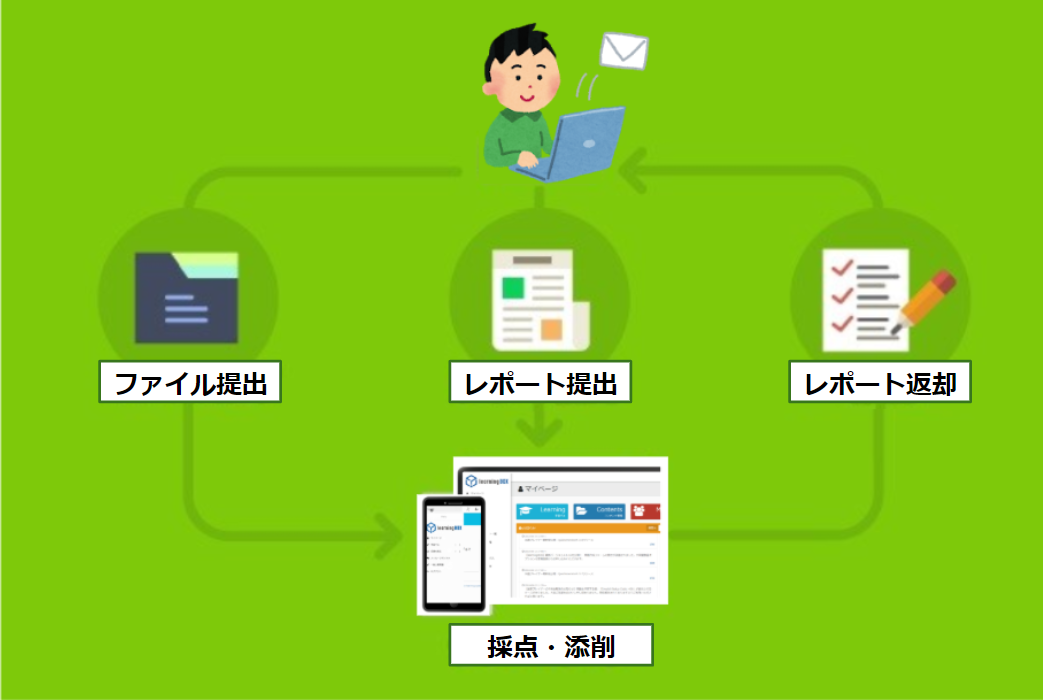
The training on learningBOX is conducted by first learning through PDF/Google Slides/videos published on learningBOX, and then answering tests to pass the tests. A passing score is set for the test, and if you fail the test, you will have to take the test again to pass. For quiz-style tests, learningBOX will automatically grade the test, but for questions that require a report, a senior employee will grade the test on learningBOX after the report is submitted.
Impressions of newcomer training at learningBOX
Now, let me share with you my impressions of the new employee training on learningBOX, the subject of this issue.
Impression #1: No confusion in operation
When I took the training course at learningBOX, I had no trouble at all in operating the screen. Even if you don't check how to operate the system, you will be able to use it without any problems.
One of the points that prevents us from getting lost is the "visualization of the training to be taken".
Point 1
⇒Materials are displayed in the order of progression.
LearningBOX has a "course setting" function that allows you to advance to the next question after you pass a specific question. You cannot proceed to the next question until you have passed and understood the question, so you can proceed with the training in the order in which you should proceed.
Point 2
Learning status is displayed on the status display.
The current learning status is displayed by status, and can be checked from the list, so you can see at a glance which trainings have been completed and which have not.
For tests whose results you do not want to show immediately, you can change the status to "Conducted".
Point 3
Easy-to-answer question screen
As learningBOX offers multiple question formats, tests are presented in a format suitable for the difficulty level and answer method desired by the presenter. The question answer screen is simple and intuitive. The function to display explanations makes it easy to review even if you make a mistake on a question.
LearningBOX can also display only the training courses that each department should receive, since it is possible to set up the distribution of training materials for each group by dividing members into groups and setting up the assignment of training materials.
Impression #2: Deepen understanding at your own pace
Basically, you can proceed from learning to testing all by yourself, allowing you to learn at your own pace. In addition, learningBOX is equipped with "functions to deepen learners' understanding.
Point 4.
Focused study of wrong questions
Questions created in Master Mode are suitable for repeated study and review. By answering questions from the "Overcome Weaknesses" button, learners can focus on the questions they got wrong.
Furthermore, if a question or section has been created using the "tagging function," the number of correct answers, number of incorrect answers, and percentage of correct answers for each tag will be displayed on the "chart function" page, allowing learners to check their weak areas.
→Click here for more information about the tagging function.
Tagging Function
About the tagging function By tagging each section or question, you can use the tags to analyze your performance (e.g., to check your weak areas) ▶ For more information, click here. (e.g. to check areas of weakness) ▶ For details, click here.
→Click here for more information about the chart function.
About the chart function
The personal chart function allows you to check how much each user is learning each day and how far he or she has progressed. ▶ Click here for details.
Point 5
Favorite function to save training materials
The ability to save training materials as favorites makes it convenient for reviewing training materials on the job after the training is over.
Favorite materials will be displayed in the "Favorite Materials" section of the "Study" menu.
Conclusion
learningBOX is an easy-to-use e-learning system for learners. It is easy to use, and learners can check their own understanding of the training content as they go along. It can also be used on smartphones and tablets, so learners can study at home as part of their pre-employment training.
If you are considering implementing learningBOX, we encourage you to register for learningBOX and use almost all of its features for free for an unlimited period of time for up to 10 accounts.






 How can AI Improve your Workplace Efficiency?
 How can AI Improve your Workplace Efficiency?
 How to Create Your Own Aptitude Test
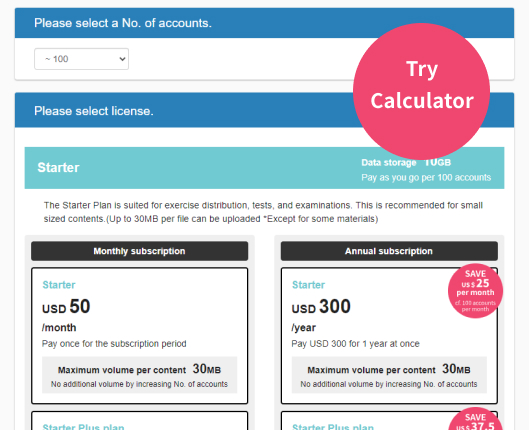
 How Much Does an LMS Cost?
 Is a free LMS practical? Explaining how to install and what to look out for