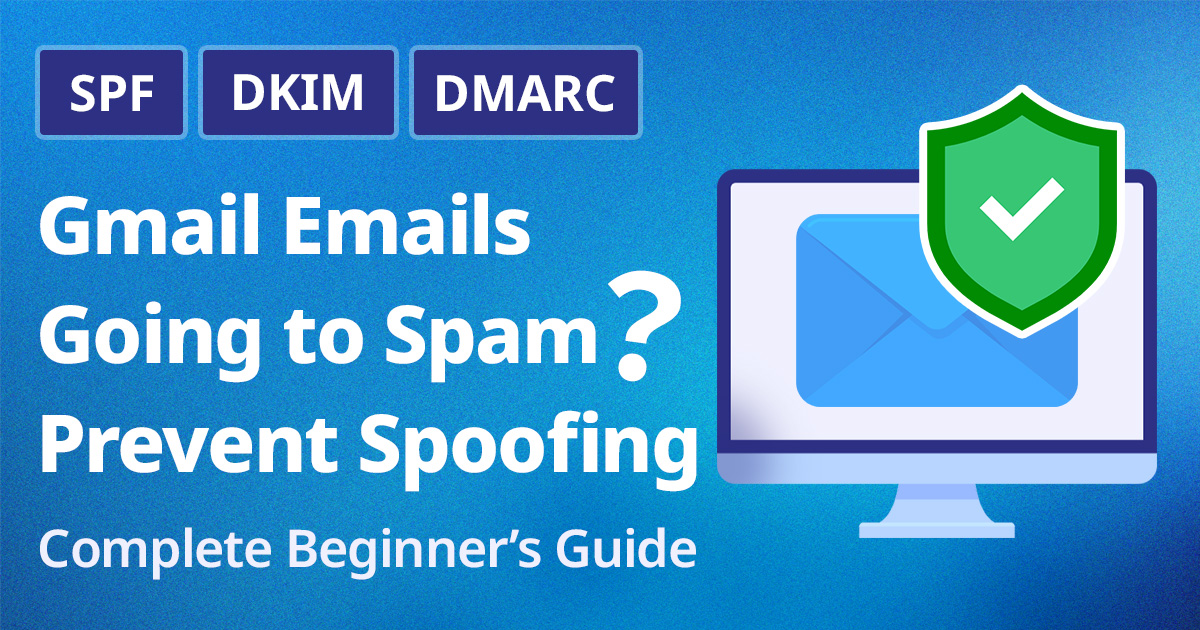
Gmail Emails Going to Spam? Prevent Spoofing | Complete Beginner's Guide
Imagine if an important business message or a newsletter you put your heart into ended up in the recipient’s “Junk” folder. In fact, this issue is almost always caused by the sender domain authentication configured in the DNS (Domain Name System), rather than the content of the email itself. The DNS is a system that links domains to servers on the Internet, and it also serves as the foundation for determining the credibility of emails. In February 2024, Google significantly strengthened its sender guidelines. Businesses that send more than 5,000 emails per day are now required to implement all three of the following: SPF, DKIM, and DMARC. Furthermore, starting in January 2025, NTT Docomo will begin gradually displaying “spoofed email warnings” on emails that do not have sender domain authentication enabled. We are now entering an era where emails with incorrectly configured DNS settings simply won’t be delivered. However, there are likely many people who think, “SPF? DKIM? DMARC? What are those? I don’t really understand.” In this article, we’ll thoroughly explain how these three technologies work, their differences, and how to configure DNS—all in a way that’s easy to understand even for those with zero technical knowledge. Why is “sender domain authentication” necessary right now? Damage caused by phishing emails is increasing year by year, leading to financial losses for companies, data breaches, and even damage to their brand reputation. The technologies known as SPF, DKIM, and DMARC are designed to counter these threats. SPF (Send-From Policy Framework) is a mechanism that verifies whether the sending server is legitimate. DKIM (Digital Key Identification Message) applies a digital signature to emails to verify “whether the message has been spoofed” and whether the content has been tampered with. DMARC is a policy that determines how to handle emails that fail SPF or DKIM authentication based on the results of those checks. By configuring these technologies properly, you can significantly reduce the risk of spoofed emails. Let’s take a closer look at their importance. The Current State of Phishing Emails In recent years, damage caused by “phishing emails”—which impersonate real companies or individuals—has surged. There have been cases where emails posing as business partners have infected recipients with malware (a general term for software created for malicious purposes), leading to the leakage of personal information, or where emails instructing recipients to transfer funds to fake bank accounts have been used to defraud them of money. What makes spoofed emails so sophisticated is that, from a technical standpoint, the “From” address can be freely altered. Attackers impersonate legitimate company domains to send emails that appear completely legitimate at first glance. It is extremely difficult for humans to distinguish these from genuine emails, which is precisely why incidents continue to occur. Furthermore, phishing emails pose a direct risk of brand damage. If your company’s domain is misused to send a large volume of phishing emails, it could significantly erode recipients’ trust. Furthermore, this could cause even legitimate emails to be filtered into the spam folder, potentially disrupting important communications with customers. Impact of Gmail Sender Guidelines In February 2024, Google strengthened its “Sender Guidelines.” The guidelines are summarized as follows: Mandatory for all senders: Compliance with either SPF or DKIM. High-volume senders (5,000 or more emails per day): Compliance with all three—SPF, DKIM, and DMARC. Failure to comply may result in emails not reaching Gmail users. Furthermore, in practice, DKIM is becoming virtually mandatory even for non-high-volume senders, as emails without DKIM are highly likely to be flagged by Gmail’s spam filter. [Reference] Gmail, “Guidelines for Email Senders”; NTT Docomo’s “Phishing Email Warning” Starting in January 2025, NTT Docomo began gradually displaying “phishing email warnings” for emails that do not support sender domain authentication. For businesses that send emails to individual users, compliance has become an urgent priority. [Reference] NTT DOCOMO, “Spoofed Email Warning Display” Return to Table of Contents How Are Emails Sent? (Very Basic) To understand sender domain authentication, the first thing you need to know is the difference between the “envelope From” and the “header From.” The mechanism of email is easier to understand if you compare it to the relationship between an envelope and a letter. Envelope “From” (Sender) This is the sender for delivery purposes. In postal terms, it’s the name written on the envelope. It is not displayed on the recipient’s screen. Letter “From” (Sender) This is the sender displayed on the screen. The “sender information” we see on our email inbox screen refers to this one. Spammers exploit this. The Basic Structure of Email (Envelope From and Header From) Even if the sender on the envelope differs from the sender of the letter, the email will still be delivered. It’s also possible to change only the name that is displayed. For example, an email can be sent from one location while appearing to come from “info@大手銀行.co.jp.” This is the technique used in spoofed emails. SPF, DKIM, and DMARC are mechanisms designed to prevent this problem. For now, just remember that “there are two senders.” Back to Table of Contents What is SPF? (A Mechanism for Verifying the Sender’s IP) SPF is the first step in preventing spoofing. It’s a system where you register the servers authorized to send emails from a given domain in the DNS. When Gmail receives an email, it verifies whether the sender is legitimate. Let’s start by understanding this “sender verification” mechanism. Basic Concepts of SPF SPF (Sender Policy Framework) is a mechanism for pre-registering in DNS the servers that are authorized to send emails from a given domain. For example, you would pre-register information in the DNS such as, “Emails from example.com are sent only from the server with IP address 203.0.113.1 (*for illustrative purposes only).” The recipient checks whether the IP address of the server that actually sent the email is included in that registered list. If the email is sent from an IP address not on the list, it can be judged as a “potentially spoofed email.” How SPF Works The SPF verification process follows these steps: The sender sends the email. The receiving server records the IP address of the server from which the email arrived. It queries DNS using the domain in the “Envelope From” field (e.g., example.com). It compares the SPF record in the DNS TXT record with the actual sender’s IP address. If they match, the result is “SPF authentication passed (Pass)”; if there is a mismatch, it is judged as “Fail/SoftFail” How SPF Works: The receiving server references DNS to verify the IP address How to Read SPF Records (Reference) The actual SPF record is written in a DNS TXT record as follows: v=spf1 include:spf.google.com ip4:203.0.113.1 ~all Meaning of each element v=spf1: Declaration of SPF version 1 include:spf.google.com: Allow sending from Google’s mail servers as well (when using external services such as Gmail) ip4:203.0.113.1: Permits sending from this IP address ~all: Treats all other sources as “SoftFail” (a warning) (whereas -all results in a complete rejection) The difference between ~all and -all lies in the severity of the response to an SPF failure. While -all (HardFail) recommends complete rejection, it is often recommended to start with ~all and monitor the situation first, as there is a risk that legitimate emails may be falsely flagged when relayed. Limitations of SPF Reading this far, you might think, “If I configure SPF, I can prevent spoofing.” However, SPF alone is not sufficient. In fact, SPF has inherent weaknesses that are structurally unavoidable. SPF does not verify the “From” header; it verifies only the envelope “From” (the sender listed on the envelope). It does not verify the “From” header displayed in email clients (the sender of the message). In other words, SPF alone cannot prevent spoofing where the “Envelope From” is set to the legitimate domain, but the “From” header is forged. Cannot Handle Forwarding When an email is forwarded, the forwarding server’s IP address becomes the new “sender IP.” However, since the forwarding server’s IP is not registered in the SPF record, SPF authentication fails even though the email is legitimate. DKIM, which we’ll explain next, was introduced to address these weaknesses. Back to Table of Contents What is DKIM? (Digital Signatures to Prevent Tampering) If SPF is a mechanism for verifying the “sending server,” the next step is a mechanism to verify whether “the email itself is genuine.” This is where DKIM comes in. Basic Concept of DKIM If SPF is a “list of authorized sending servers,” then DKIM is a “seal of authenticity.” The concept of DKIM is similar to affixing a company seal to an important document. The sender applies an “electronic signature” to the email, and the recipient verifies that signature to confirm that “this email was created by the genuine sender and has not been tampered with in transit.” How DKIM Works DKIM is a mechanism for applying an “electronic signature” to emails. While SPF verifies the sender’s IP address, DKIM verifies whether “the email was sent from a legitimate source (not a spoof)” and whether “the email’s content has not been tampered with.” DKIM operates using digital signatures based on public-key cryptography. The sender’s process is carried out as follows: Calculate a hash value from the email’s contents (headers + body). Encrypt the hash value with a private key to create a “signature.” Attach the signature to the email as a DKIM-Signature header and send it. * A hash value is a fixed-length string generated by applying a special calculation (a hash function) to data; it is produced through a one-way (irreversible) transformation that cannot be reversed. The recipient’s process is carried out as follows: Retrieve the signing domain (d=) and selector (s=) from the DKIM-Signature header. Retrieve the public key from DNS. Decrypt the signature using the public key to extract the hash value. Verify that it matches the hash value of the received email body. * d= (signing domain) refers to the domain name that signed the email. This means “This domain is responsible.” *s= (selector) is the name (identifier) used to locate the public key. It allows a single domain to use multiple keys. How DKIM Works: Detects email tampering using digital signatures based on public-key cryptography. If there is a match, “DKIM authentication succeeds,” confirming that the email has not been tampered with and was created by the genuine sender. Contents of the DKIM-Signature (for reference): The DKIM-Signature actually added to the email header has the following structure: DKIM-Signature: v=1; a=rsa-sha256; c=relaxed/relaxed; d=example.com; s=google; …omitted… bh=hash value; b=signature data Main parameters d= (domain): The domain that performed the signature. Important values used for DMARC alignment checks s= (selector): The key used to look up the public key in DNS a= (algorithm): The signing algorithm (rsa-sha256 is common) What is a selector? A selector is an identifier used to distinguish between multiple DKIM key pairs within a single domain. For example, if d=example.com and s=google, the receiving server retrieves the public key by referencing the DNS record google._domainkey.example.com. This allows you to manage multiple email services using separate selectors. Mechanism for Using Different Keys Across Multiple Services Limitations of DKIM People often assume that if SPF and DKIM are configured, “spoofing protection is foolproof.” However, DKIM also has vulnerabilities. Replay Attacks: DKIM cannot prevent “replay attacks,” in which a malicious third party intercepts an email with a valid DKIM signature and resends it to a different recipient. No Policy Control on Its Own: While DKIM verifies whether an email is “authentic,” it does not define a policy for how to handle emails that fail authentication. DMARC handles the response to authentication failures. DKIM is a mechanism for verifying “authenticity.” However, it cannot determine how to handle emails that fail authentication. That role is fulfilled by DMARC, which will be explained next. Back to Table of Contents What Is DMARC? (The Command Center That Makes the Final Decision) SPF and DKIM now allow us to verify the “sender” and “whether the message has been tampered with.” But what happens to an email if either verification fails? DMARC is responsible for making that final decision. The Role of DMARC DMARC (Domain-based Message Authentication, Reporting, and Conformance) acts as the command center that receives the “results” from SPF and DKIM and determines how to handle emails that fail authentication. DMARC has the following three roles: Final Determination: DMARC combines the authentication results from SPF and DKIM with alignment (discussed later) to make a comprehensive determination of the email’s authenticity. Policy Declaration: It specifies how the receiving server should handle emails when authentication fails. Receiving Reports: It allows you to receive aggregated reports showing who is sending emails from which domains. DMARC Policy: A DMARC record is a “rule for handling email” configured in DNS. It is displayed as follows: v=DMARC1; p=none; The “p” in the DMARC record stands for “policy” and specifies how to handle emails that fail authentication. Three Policy Levels DMARC allows you to set three policy levels. Policy Meaning Recommended Use none Monitoring only. Does not affect email processing. Initial investigation and monitoring phase quarantine Sorts emails that fail authentication into the spam folder. Intermediate stage reject Completely rejects emails that fail authentication. Full-scale operation Reasons for a Phased Implementation You should not set DMARC to “reject” right away. There are two reasons for this. First, if you set the policy to “reject” without fully understanding all legitimate email delivery paths, even legitimate emails sent from newsletter services, internal systems, and external applications will be rejected. Second, if you set the policy to “reject” while SPF and DKIM configurations are incomplete, a large number of legitimate emails may be rejected. Recommended Steps: Start monitoring with `p=none` (use DMARC reports to identify sending paths). Once SPF and DKIM are configured for all paths, transition to `p=quarantine`. If there are no issues, raise the setting to `p=reject`. An important concept called “alignment” is involved in DMARC evaluation. Next, let’s take a closer look at how it works. Return to Table of Contents What Is DMARC “Alignment”? So far, we’ve examined how SPF, DKIM, and DMARC work. However, there are instances where “authentication succeeds but DMARC fails.” The cause of this is alignment mismatch. Why Is Alignment Important? Alignment is a mechanism that verifies whether the domain used for authentication matches the sender (From) displayed on the screen. DMARC performs this check on both SPF and DKIM. SPF Alignment: SPF verifies the domain of the “envelope From” (the sender’s domain in the envelope). DMARC checks whether the domain that passed SPF authentication matches the domain in the displayed “From” header. DKIM Alignment: DKIM verifies the “d=domain” included in the signature. DMARC verifies that the DKIM signature is valid and that the “d=domain” matches the displayed “From” (header “From”) domain. The Difference Between “Relaxed” and “Strict” “Relaxed” and “Strict” are settings that determine the strictness of the alignment (domain match) check. They are specified within the DMARC record. “Relaxed” allows for subdomains, while “Strict” only permits exact matches. Unless there is a specific reason, using “Relaxed” is generally sufficient. DMARC is Valid If Either Passes: It is important to note that DMARC is considered a “PASS” (successful) if either the SPF alignment or the DKIM alignment passes. This means that even in cases where SPF authentication fails—such as when emails are relayed—DMARC still passes as long as DKIM alignment is successful. That is why it is crucial to “configure both SPF and DKIM.” Illustrated Explanation of How DMARC Works Return to Table of Contents Frequently Asked Questions Here, we address some frequently asked questions. Q. Why does it end up in the spam folder? A. If SPF or DKIM is not configured or is configured incorrectly, the recipient’s mail server will deem the sender “untrustworthy” and route the email to the spam folder. Gmail, in particular, takes a strict stance against emails without a DKIM signature. Q. Can “display name” spoofing be prevented? A. SPF, DKIM, and DMARC cannot prevent “display name” spoofing. For example, even if the actual sender is evil.com, as in “Taro Yamada attacker@evil.com,” the display name in the email client can be spoofed to appear as “Taro Yamada.” Implementing BIMI (Brand Indicators for Message Identification) is an effective measure against display name spoofing. Q. Why does SPF authentication fail when an email is forwarded? A. When an email is forwarded, the forwarding server becomes the new “sender IP address.” However, since the forwarding server’s IP address is not listed in the original sender’s SPF record, SPF authentication fails. To work around this, the “SRS (Sender Rewriting Scheme)” mechanism rewrites the envelope “From” field during forwarding to ensure SPF passes. DKIM is resistant to forwarding because the signature remains valid as long as the email body and headers are not altered during forwarding. Return to Table of Contents DNS Settings for learningBOX Users If you use learningBOX with the default settings, the domain of the sender’s email address will be ours (@learningbox.co.jp). In this case, SPF, DKIM, and DMARC are already configured, so no additional action is required. On the other hand, if you have set an email address from your own domain as the “From” address (for users who have changed the “From” email address using the customization option), you will need to configure your DNS settings. If these settings are insufficient, notification emails and other messages may be filtered into the spam folder. Here, we will first explain the SPF setup procedure. Overview of SPF Setup: learningBOX’s SPF settings must be configured through the management interface (DNS server) of the domain registrar with whom you have a contract, not through the learningBOX management interface. Your domain registrar is the company you used when you registered your domain. You can identify your domain registrar by checking the domain portion to the right of the “@” in your email address. Please note that learningBOX uses the “Amazon SES” mail server. Therefore, you must include “include:amazonses.com” in your SPF record. SPF Configuration Steps STEP 1: Request DNS Settings from Your Domain Registrar Log in to the control panel of your domain registrar and open the DNS settings page. DNS is the system used to manage and operate domain names. Please check your domain registrar’s support page for the specific request procedure. STEP 2: Configure the SPF record in the DNS settings screen. From your domain registrar’s control panel, configure the following TXT record: v=spf1 include:amazonses.com ~all *Note: Depending on your DNS service, the host field will be either blank or “@”. If an SPF record already exists for your domain, please add “include:amazonses.com” in the following format while retaining the existing settings: v=spf1 Existing settings: include:amazonses.com ~all Setup Instructions for Major Domain Registrars Setting Up with Onamae.com Configure DNS settings via the Onamae.com control panel. The setup procedure varies depending on the nameservers you use, so please refer to Onamae.com’s official support information for details. [Reference] Onamae.com, “Onamae.com Email Marketing Guide” Setting up with Xserver: Configure DNS settings via the Xserver server panel. [Reference] XServer, “SPF Settings” Return to Table of Contents Summary In this article, we explained the mechanism of “sender domain authentication,” which can cause emails to end up in the spam folder. SPF (Sender Policy Framework): A mechanism that declares the sender’s IP address via DNS to detect spoofed emails. While configuration is relatively simple, it has the limitation that it does not verify the “From” header, meaning emails may bypass authentication when forwarded. DKIM (DomainKeys Identified Mail): Uses digital signatures to verify the authenticity of emails and confirm they have not been tampered with. It is robust against forwarding and can also verify the “From” header domain. DMARC (Domain-based Message Authentication, Reporting, and Conformance): A mechanism that uses SPF and DKIM results to specify how to handle authentication failures (none/quarantine/reject) and receive reports. It is considered valid if either SPF or DKIM alignment is successful. These three work together as a set. Each one is insufficient on its own; only when combined do they form a robust sender domain authentication system. Start by “configuring SPF and DKIM” and “beginning DMARC monitoring with p=none.” Check out learningBOX’s feature list and pricing now! Download materials ▼ You might also like! Related articles





 Choose the Right System to Train Global Talent - 3 key factors for SMEs
 The Ultimate Guide for Selecting the Right Multilingual Trainng Management System
 Human Resource Development Grant for e-Training
 Memorization Strategies
 How to Create Your Own Aptitude Test